
A step-by-step guide for carriers.
Auto Hauler Exchange (AHX) is a digital marketplace that connects vetted carriers directly with shippers—eliminating the need for brokers and reducing delays. If you’re a carrier ready to move vehicles faster and get paid more transparently, this guide will walk you through the process of booking your first (or next) load on AHX.
Watch this video or follow the steps below to guide you through the booking process.
Step 1: Login to the Dashboard
Start by logging into your Auto Hauler Exchange dashboard. If you don’t already have a carrier account, you can sign up for our platform.
Step 2: Find an Available Load
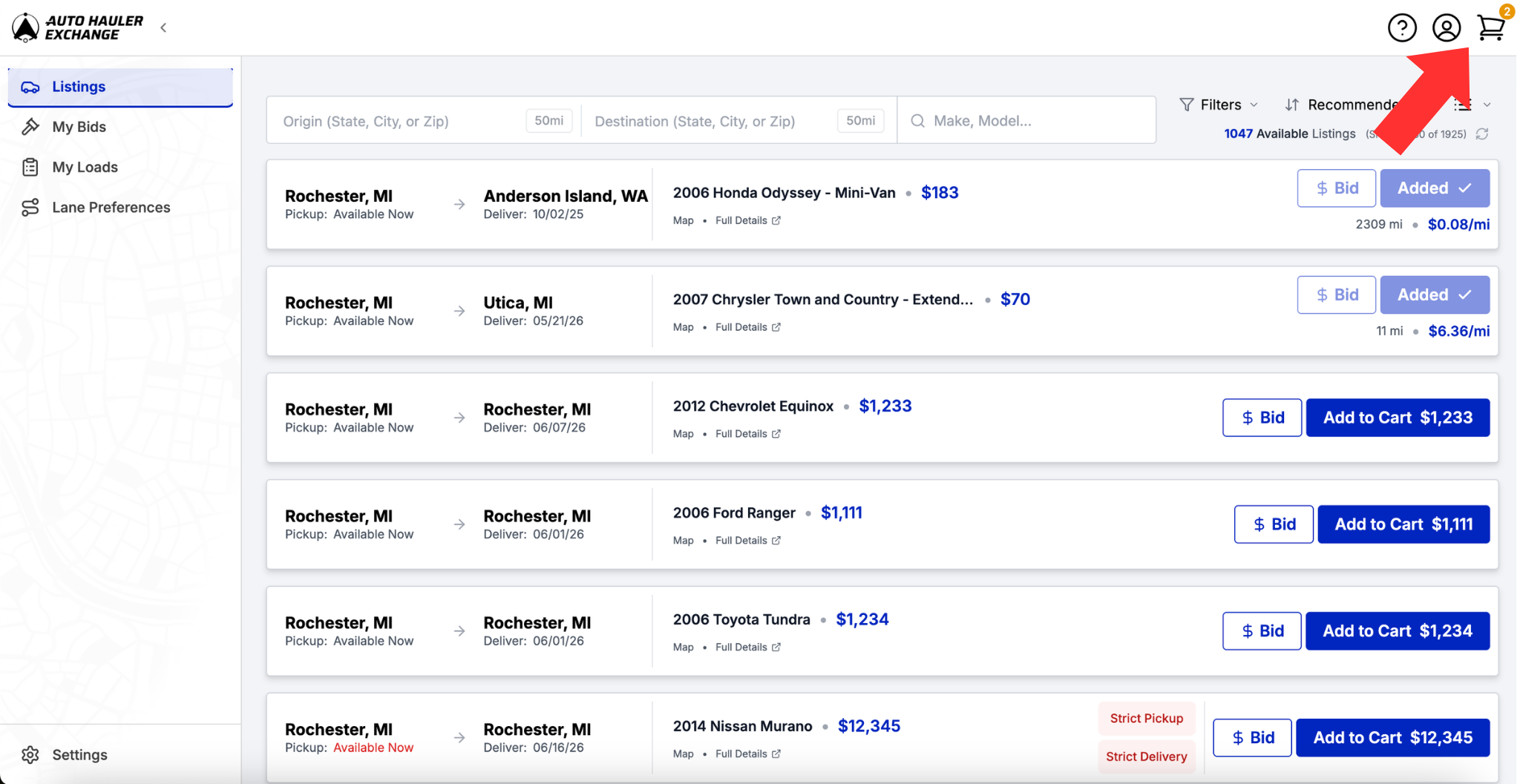
Once logged in, navigate to the “Listings” tab on the left of the dashboard.
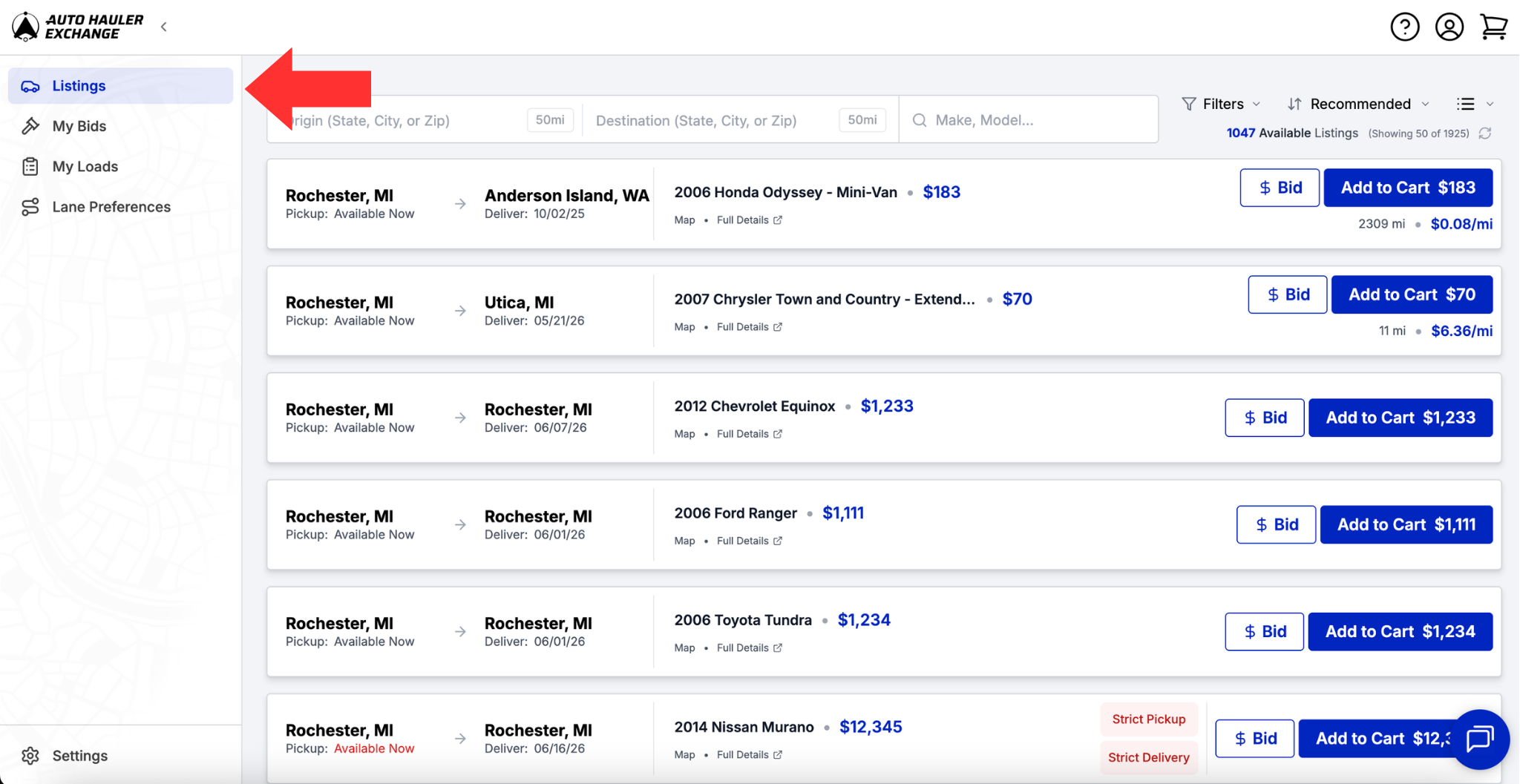
Here you will have the ability to browse all of the available loads on the Exchange.
You can search for listings by entering an origin or destination city or state, or make/model to quickly narrow your results.
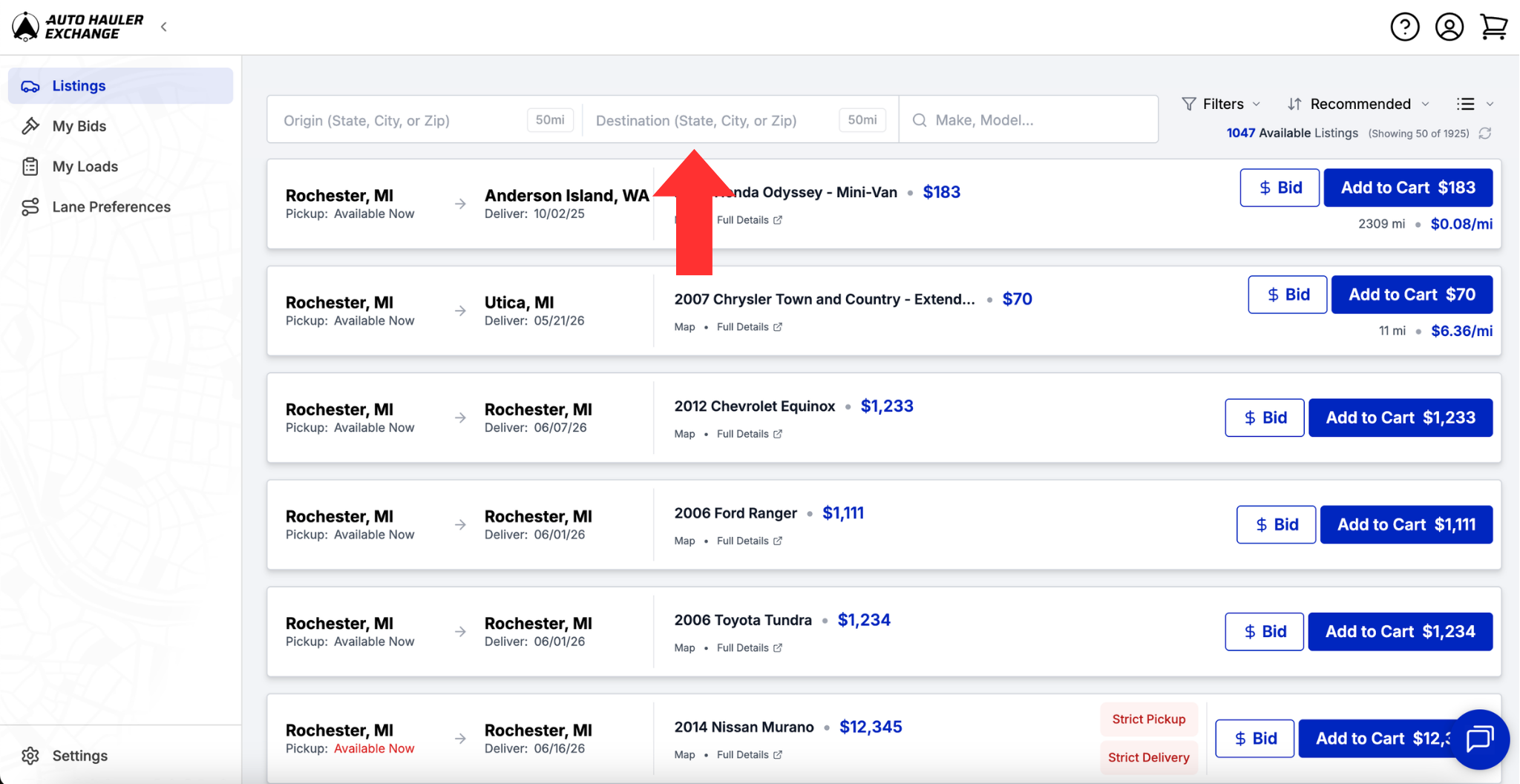
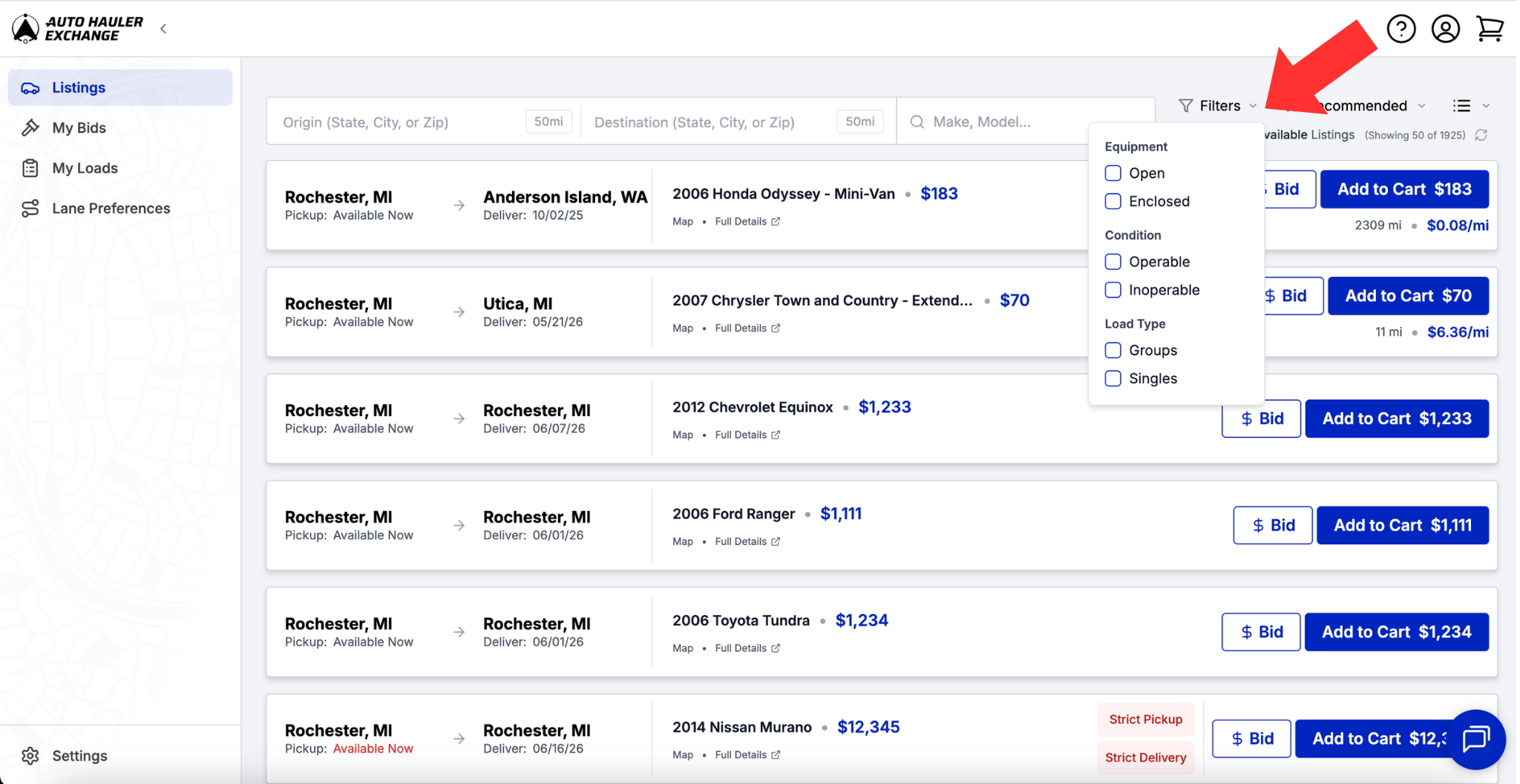
You can filter the listings based on:
- Equipment
- Condition
- Load Type
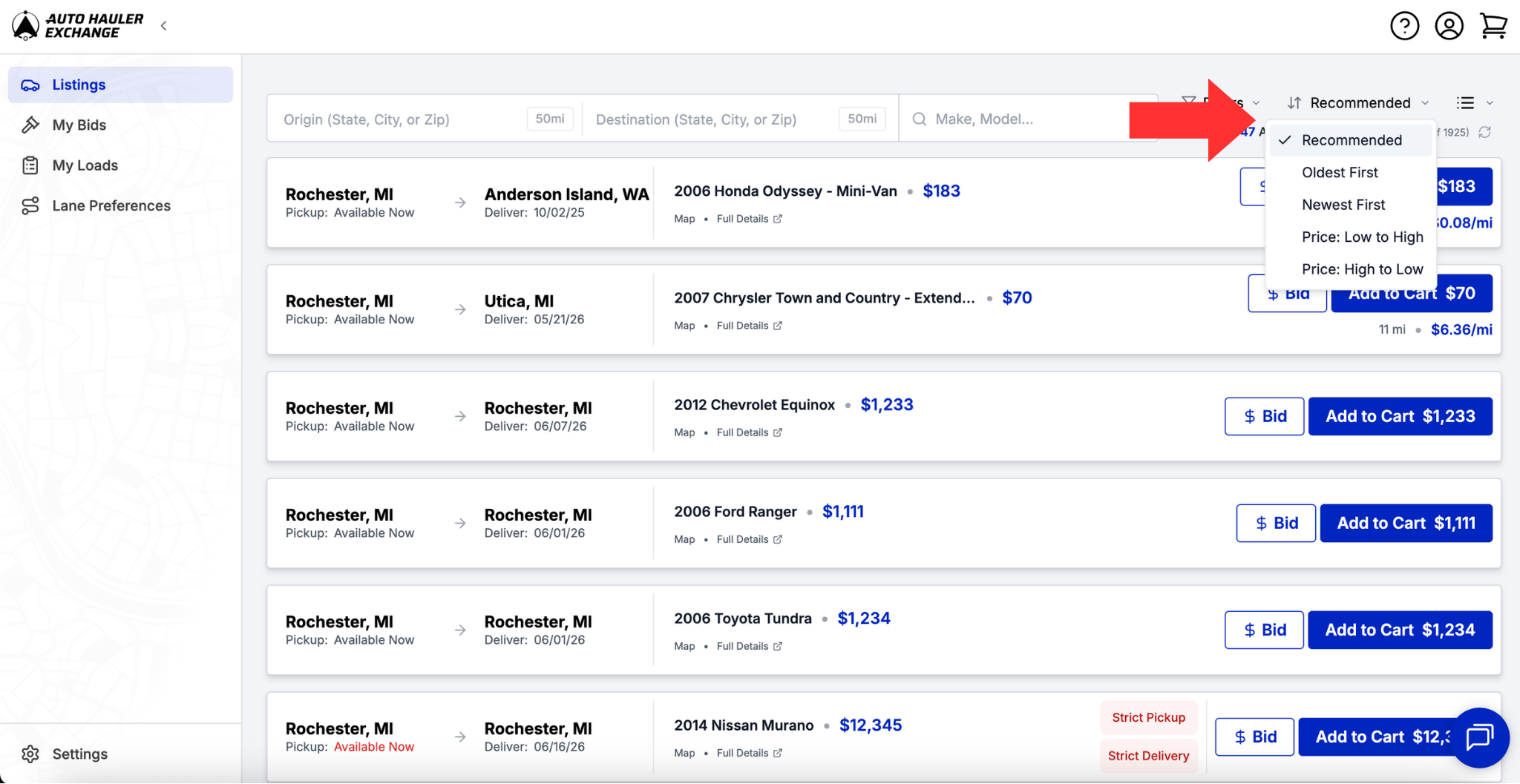
And you can sort the listings by:
- Recommended
- Oldest First
- Newest First
- Price: Low to High
- Price: High to Low
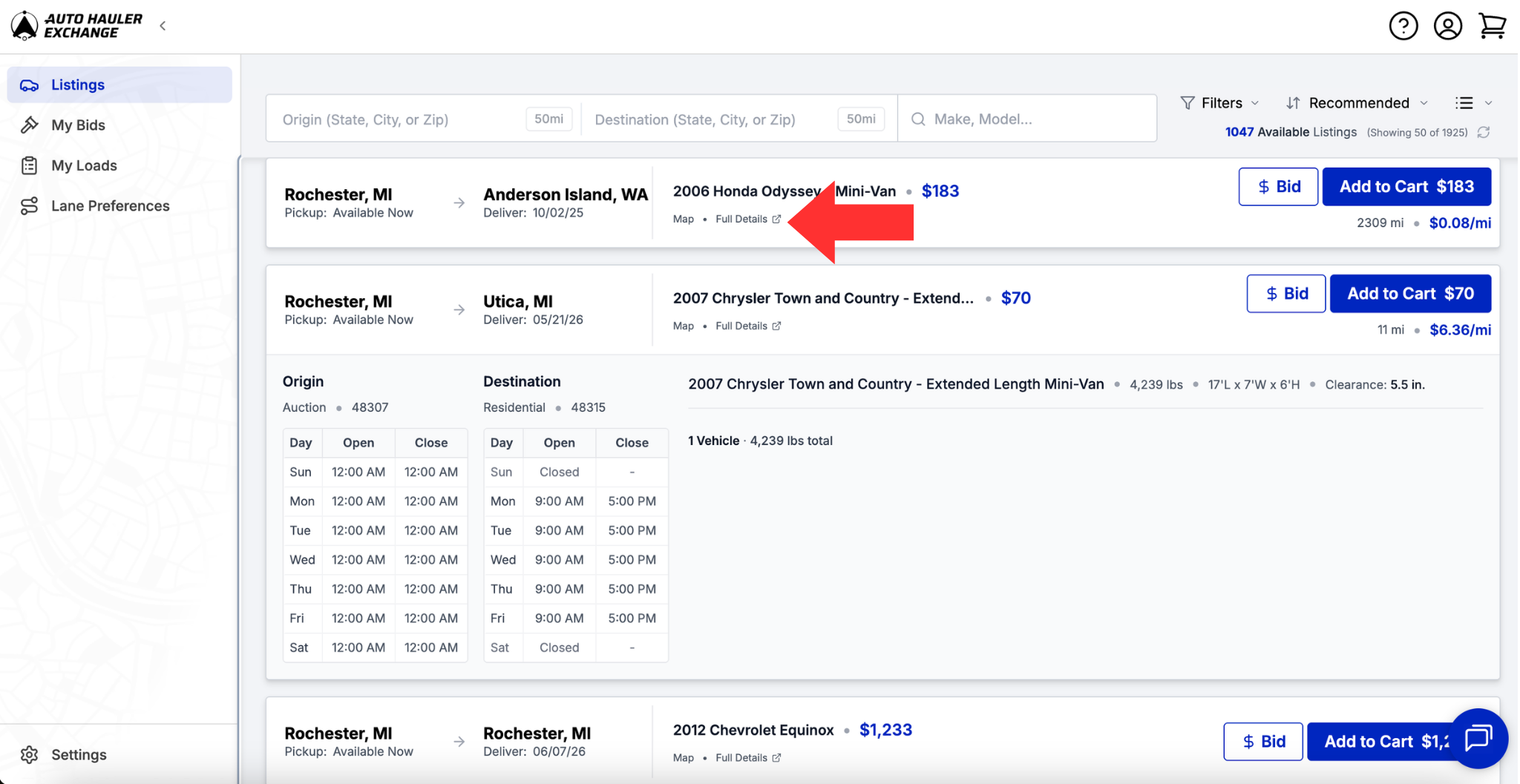
Click on the load to get a preview of the load details.
For full load details click “Full Details” to be taken into the load page.
Step 3: Add to Cart
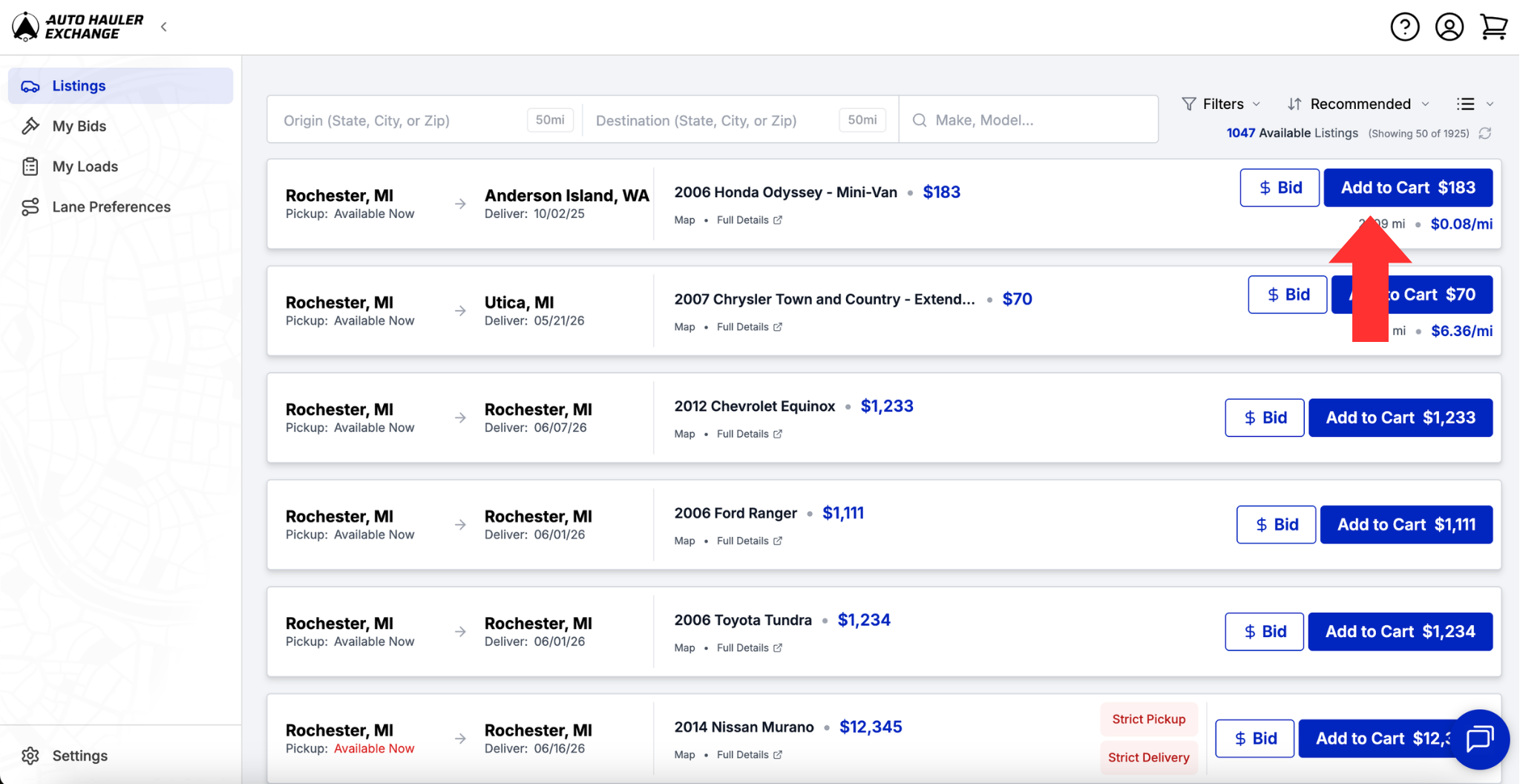
Click the blue “Add to Cart” button on the right side of the load that you wish to check out. This will add that load to your cart. You can now add more than one load to your cart at a time.
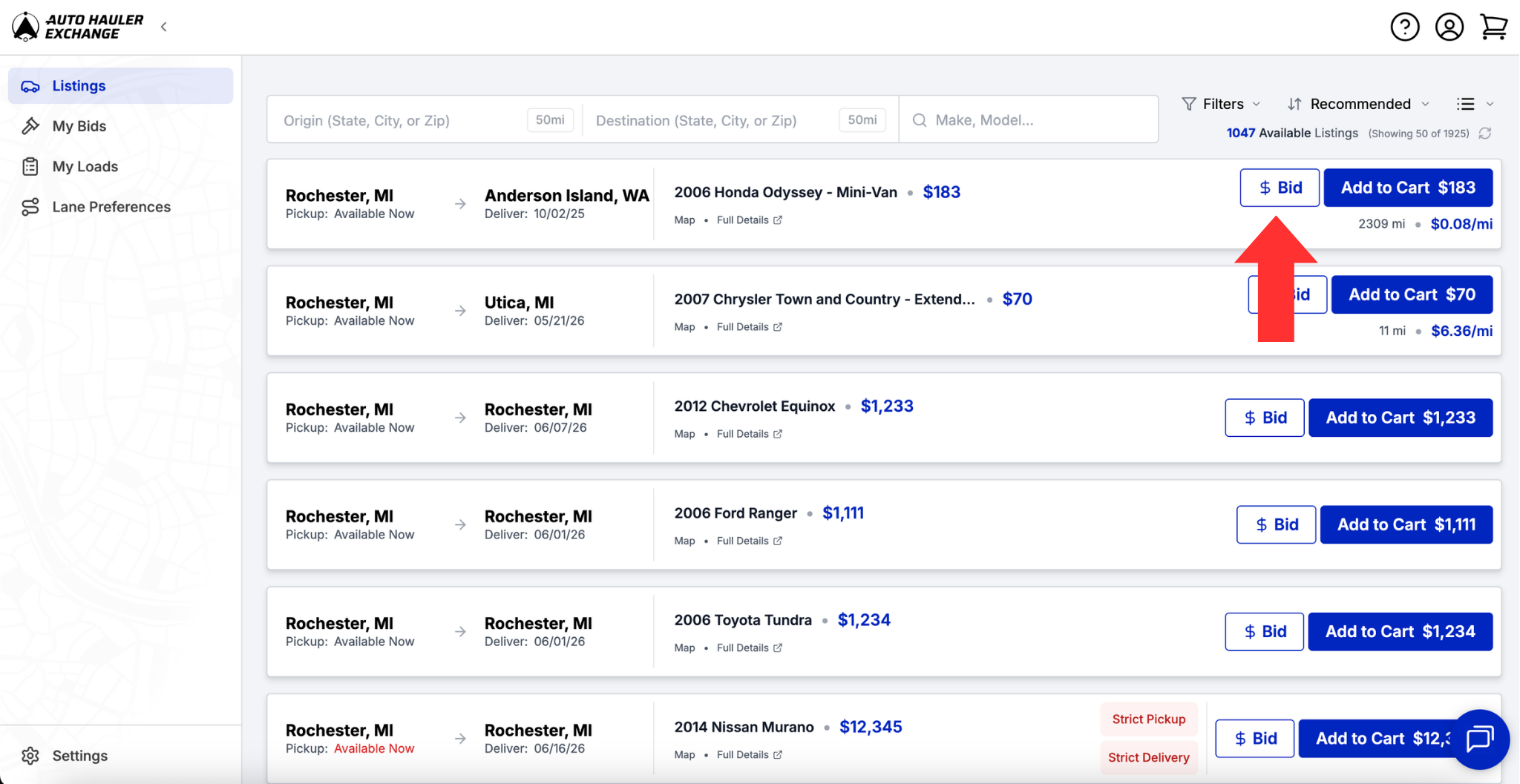
You also have the ability to bid on a load using the “Bid” button. For more information visit our blog regarding “How to Bid on a Load.”
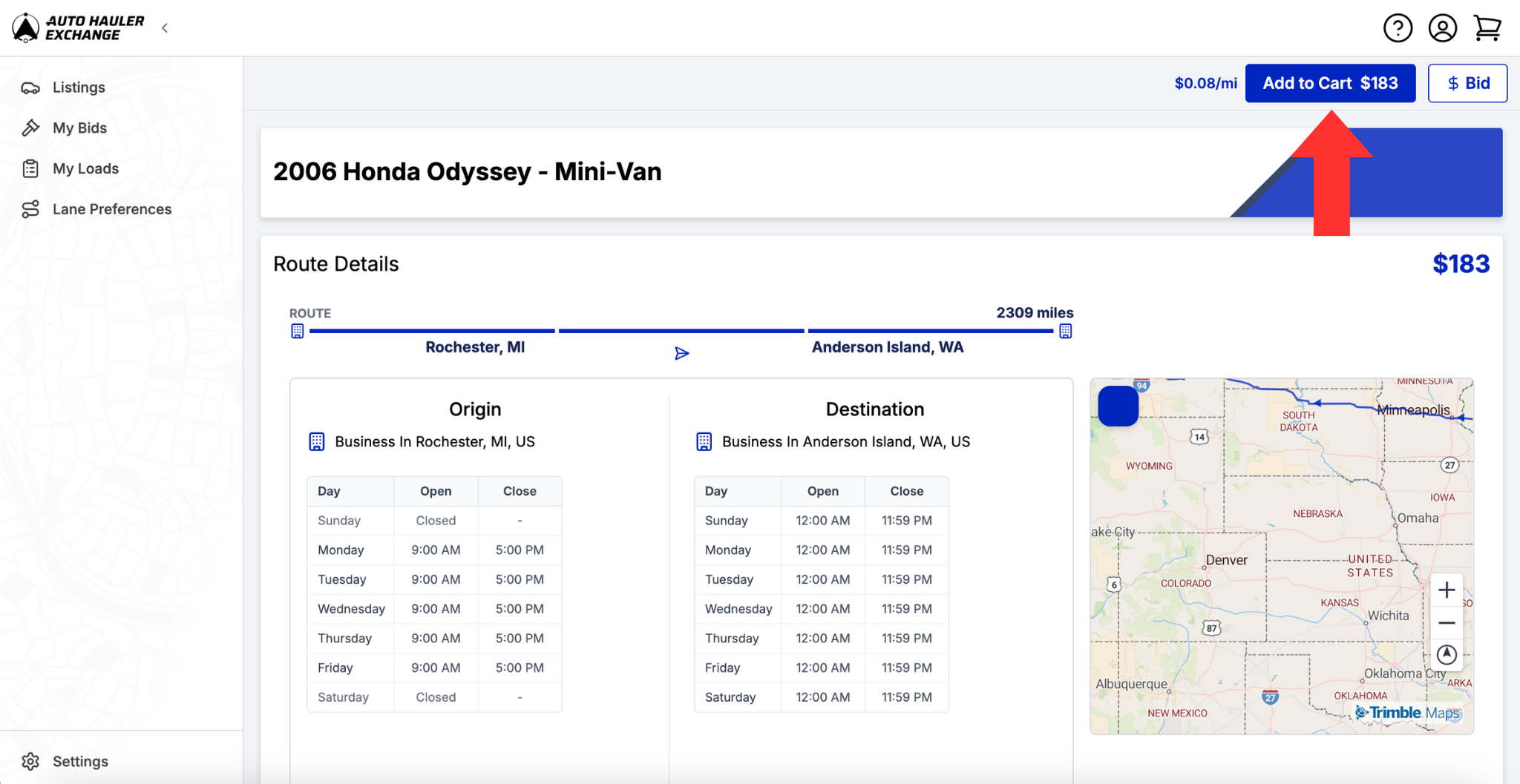
If you are in the load details page, the “Bid” and “Add to Cart” buttons will be in the top right corner.
Step 4: Checkout
Click the “shopping cart” icon to view the loads that you added to your cart.
Enter the shipment details including:
- Driver
- Dispatcher
- Pickup and Delivery ETAs
- ELD-connected truck
For detailed instructions on ELD Tracking, see Understanding ELD Tracking on the Exchange.
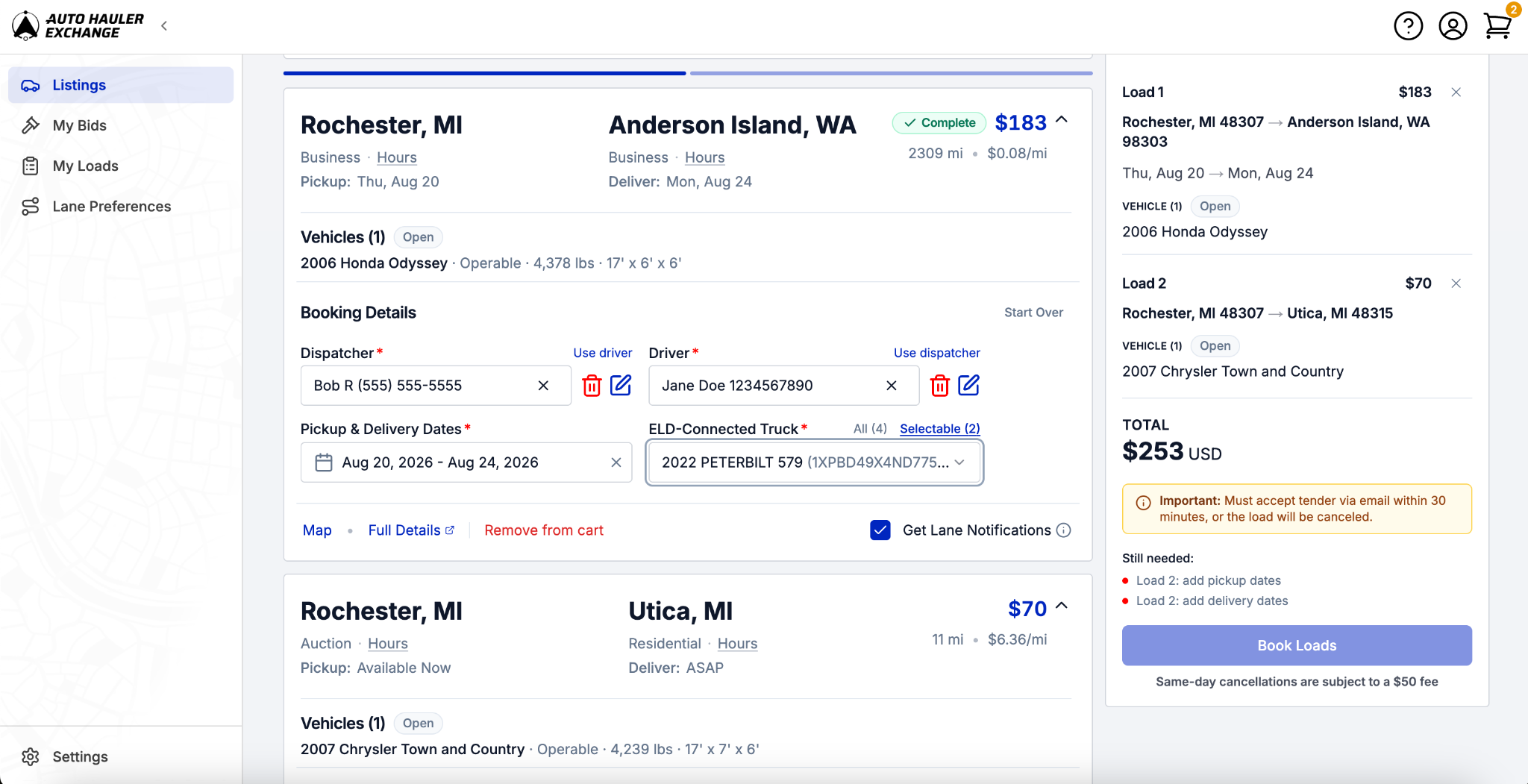
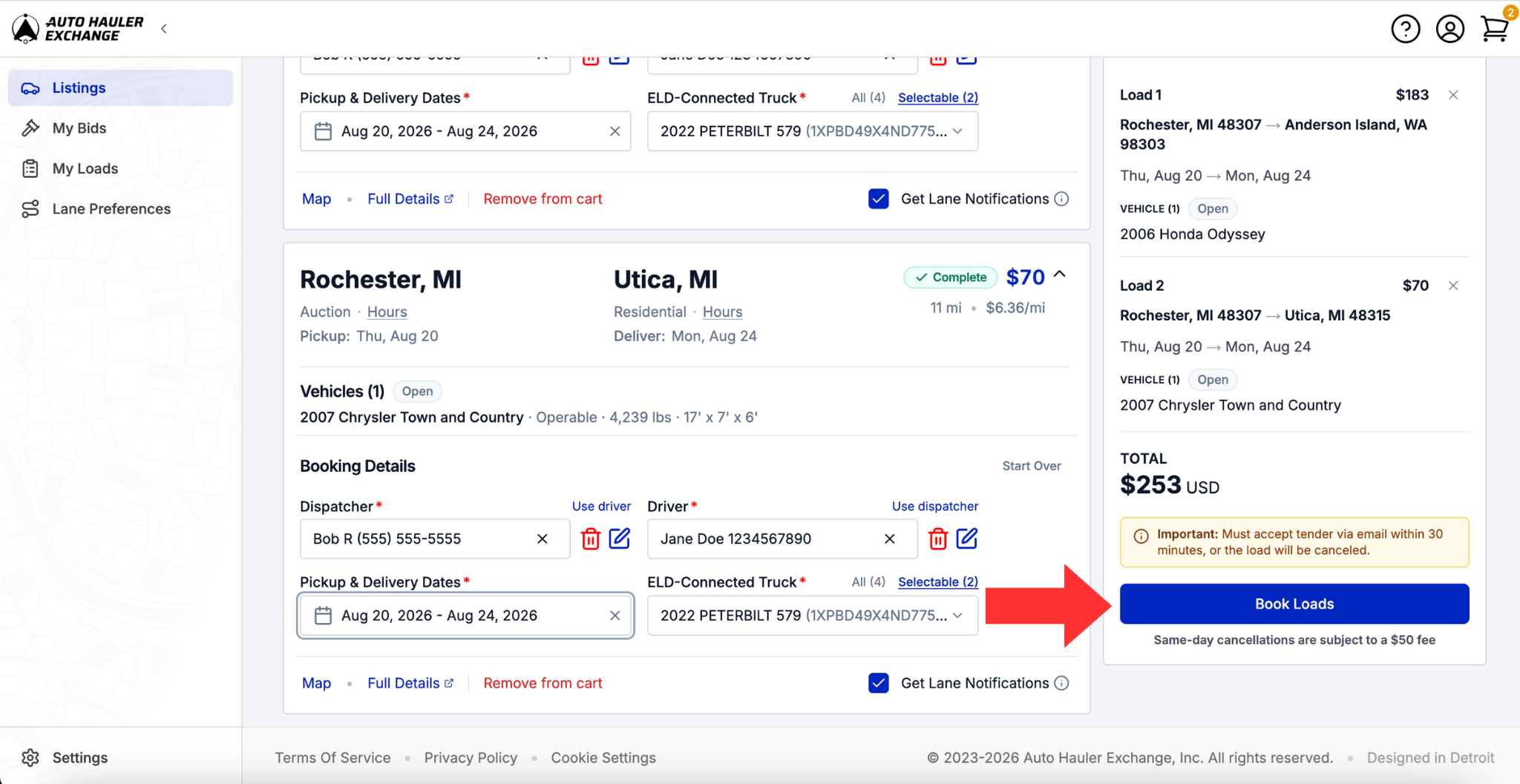
If you’re checking out more than one load, the information will automatically populate for the other loads in your cart. Just be sure to select the pickup and delivery dates for each load individually, as those dates will not carry over.
Step 5: Book Your Load
Once you have filled in all the necessary information, click “Book Loads” to complete the process.
Step 6: Tender Offer
You will receive an email asking you to accept the tender offer. If you don’t accept the tender offer you will not be given the necessary information needed to transport the load. The tender offer must be accepted within 30 minutes or the load will be canceled and returned to the board.
This 2 factor-authentication serves as a security measure to ensure only the assigned carrier has access to the vehicle(s).
My Loads Page
Once you have booked the load, your load will show up in your Carrier Dashboard. To get there, click “My Loads.”
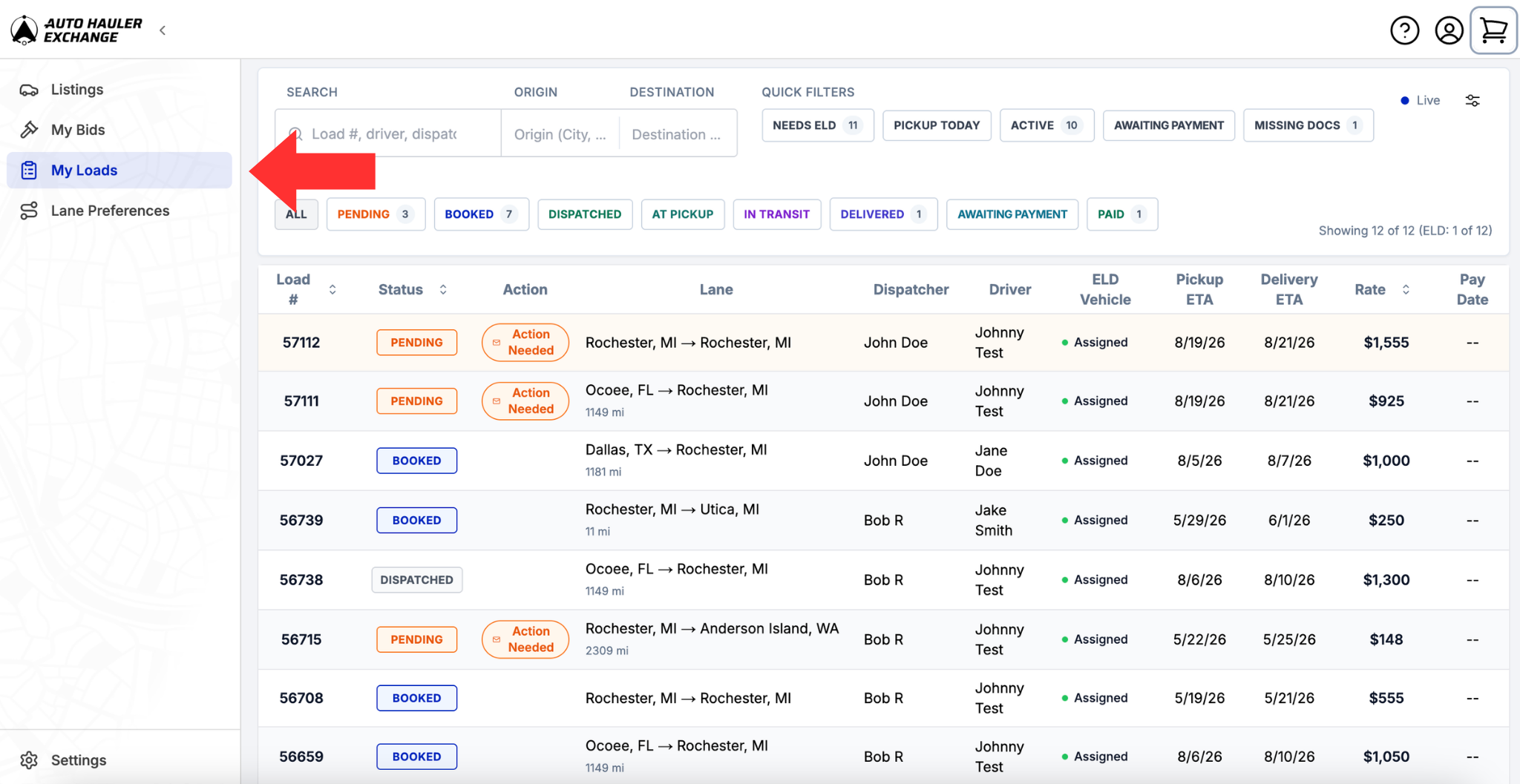
For more detailed information on the carrier dashboard, visit The Carrier Dashboard: My Loads Page Guide
Support
Need help or have questions? Reach out to our support team anytime—we’re here to help!