
The “My Loads” page within the Carrier Dashboard serves as your central hub for managing all assigned and active loads. To access this page, click on “My Loads” at the top of the screen.
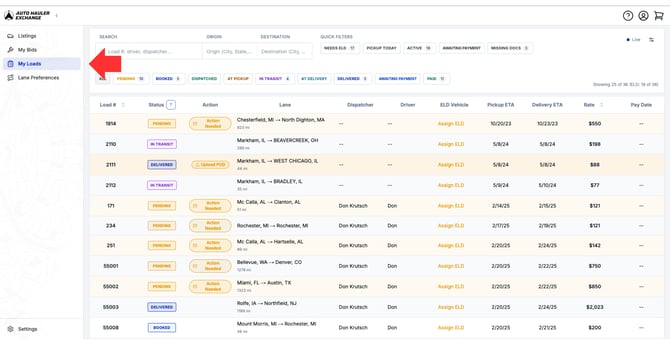
From this page you can:
- View load status
- See pickup and delivery dates
- Complete required actions
- Connect or manage ELD tracking
- Monitor payout information
Understanding the Columns
Status Column
The Status column shows the current stage of each load.
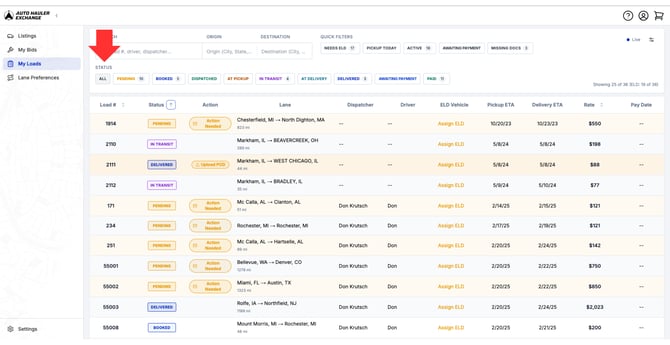
Statuses include:
- Pending – Load has been offered but not yet accepted
- Booked – Load has been confirmed
- Dispatched - A Team Member from AHX has called you and confirmed this load
- At Pickup - ELD Tracking has detected that your truck is within 5 miles of the pickup location
- In Transit – Vehicle has been picked up and is en route
- At Delivery - ELD Tracking has detected that your truck is within 5 miles of the delivery location
- Delivered – Vehicle has been delivered
- Awaiting Payment – Delivery is complete and payment is processing
- Paid – Payment has been issued
Monitoring load status ensures you stay informed and take timely action when needed.
Action Column
The Action column alerts you if a load requires attention. If action is required, you will see “Action Needed.” To see specifics, hover your mouse to view the reason.
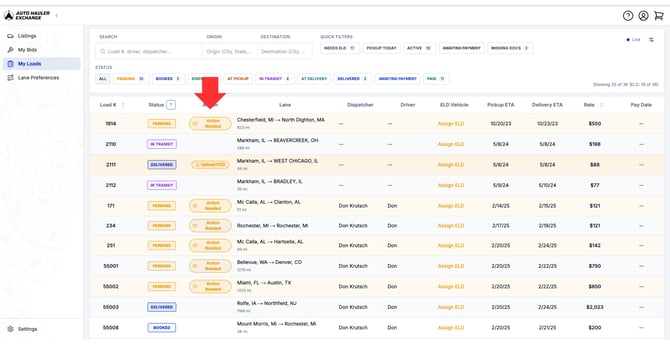
Examples of required actions may include:
- Re-sending a tender offer email
- Uploading a Bill of Lading (BOL)
- Completing required documentation
- Confirming pickup or delivery details
To resolve an issue, simply click on the listed action and follow the prompted steps.
Completing required actions promptly helps prevent delays in:
- Pickup
- Delivery
- Payment processing
ELD Vehicle Column
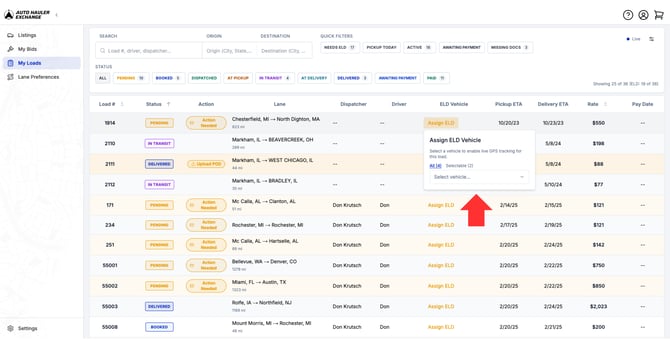
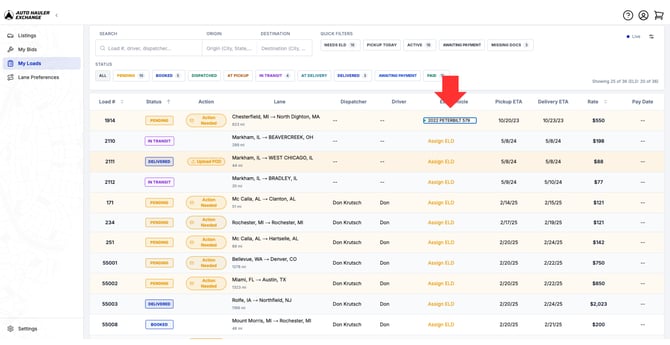
The ELD Vehicle column displays the tracking status of each load.
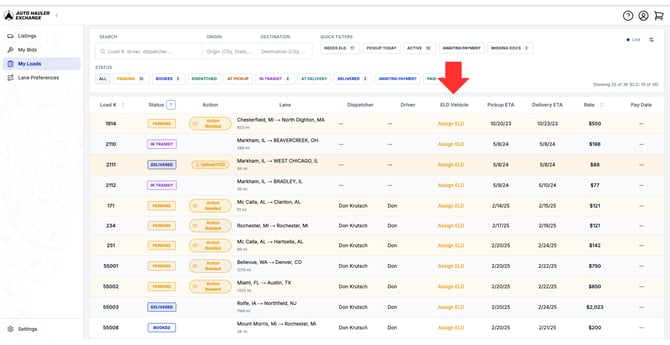
You may see the following statuses:
Assign Vehicle
Your ELD provider is connected, but no vehicle has been assigned to this load. Assign a truck to activate tracking.
Connected / Tracking Active
The assigned vehicle is transmitting GPS data and live tracking is enabled.
For detailed instructions on ELD Tracking, see Understanding ELD Tracking on the Exchange.
Filters & Search
The Carrier Dashboard includes filtering and search tools to help you quickly locate specific loads.
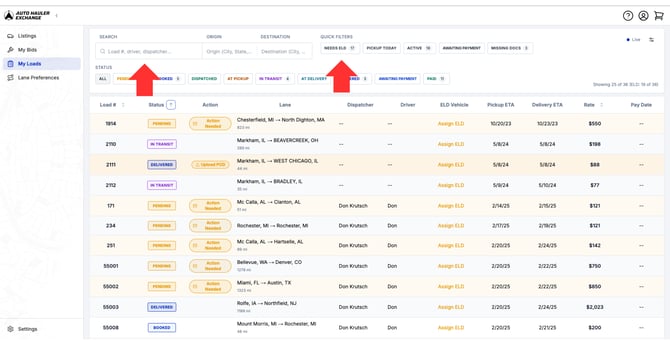
Filter Loads By:
- Status
- Active loads
- Awaiting payment
- Missing documents
- Needs ELD
Search By:
- Load number
- Driver name
- Dispatcher
- Truck number
- Origin
- Destination
Using filters and search tools can help you manage multiple loads more efficiently.
Need Additional Help?
If you have questions about your loads or encounter issues within the Carrier Dashboard, contact the Auto Hauler Exchange support team for assistance.