
Overview
When uploading files to a load on Auto Hauler Exchange, it’s important to understand the difference between photos and documents, especially from a security and visibility standpoint.
Each serves a different purpose, and knowing when to use each helps protect your information while ensuring carriers have what they need to successfully transport your vehicle.
Photos: Visible to Carriers
Photos are public within the load.
This means that all carriers viewing your load can see any photos you upload.
Why this matters
Photos help carriers:
- Understand the condition of the vehicle
- Prepare for unique transport needs (lifted trucks, low clearance, oversized vehicles, etc.)
- Identify any potential challenges before booking
Providing clear, accurate photos helps ensure:
- Faster bookings
- Fewer delays
- Better communication between shippers and carriers
Best practices for photos
- Upload clear images of the vehicle (all angles if possible)
- Include details that may impact transport (modifications, damage, size)
- Do not include sensitive information (titles, personal documents, IDs, etc.)
Documents: Private and Secure
Documents are not visible to carriers browsing the load.
These files are intended for secure, controlled use and should contain any sensitive or important paperwork related to the shipment.
Examples of documents
- Titles
- Bills of sale
- Registration paperwork
- Any sensitive or identifying information
Why this matters
Keeping documents private helps:
- Protect against fraud
- Prevent unauthorized access to sensitive information
- Ensure only the appropriate parties can access important paperwork
Manage Photos Directly from the Load Page
You can now add and manage photos directly from the load page—no need to re-upload your load.
This gives you more flexibility to:
- Add additional photos after posting
- Update images as needed
- Ensure carriers always have the most accurate view of the vehicle
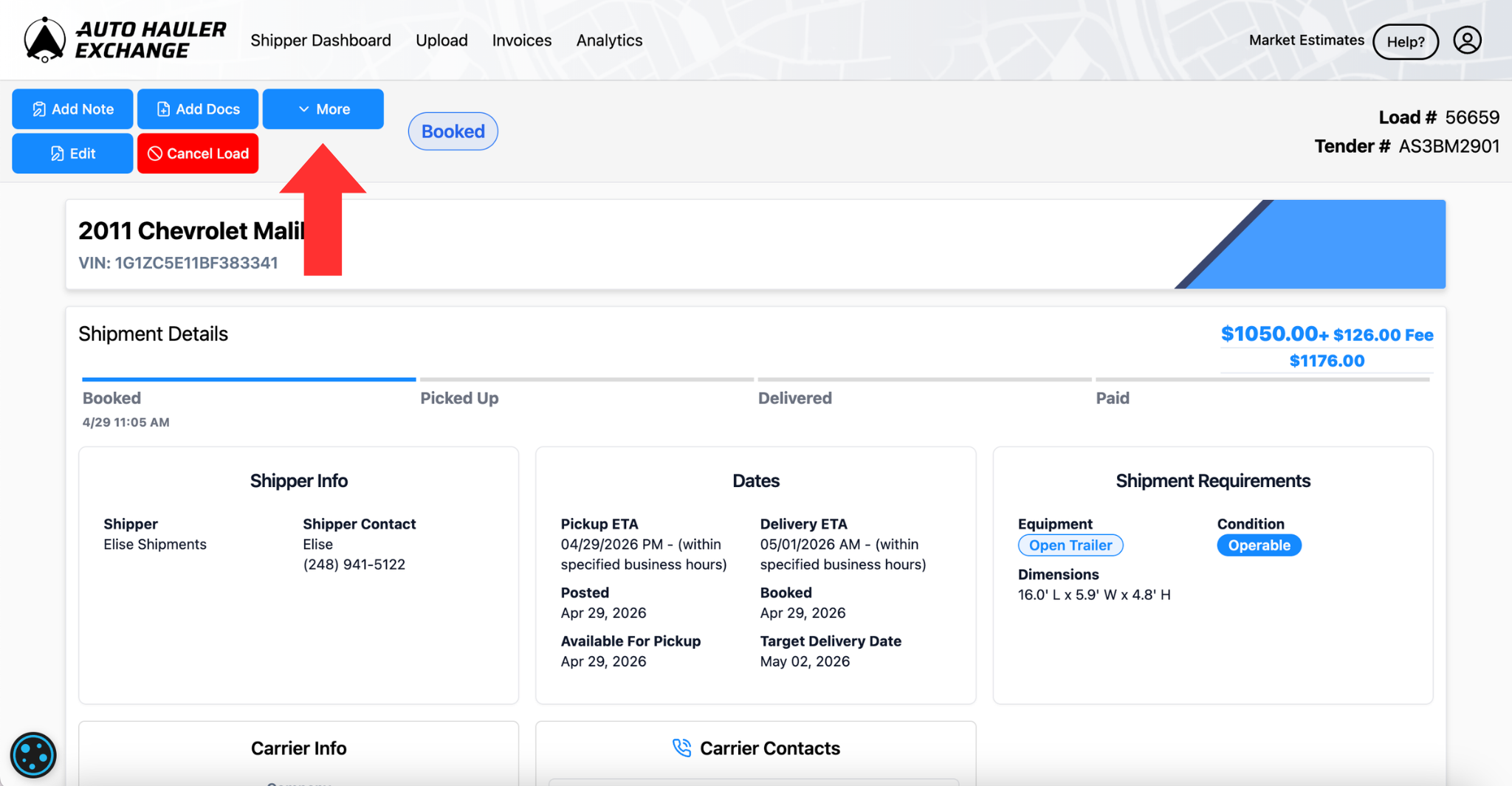
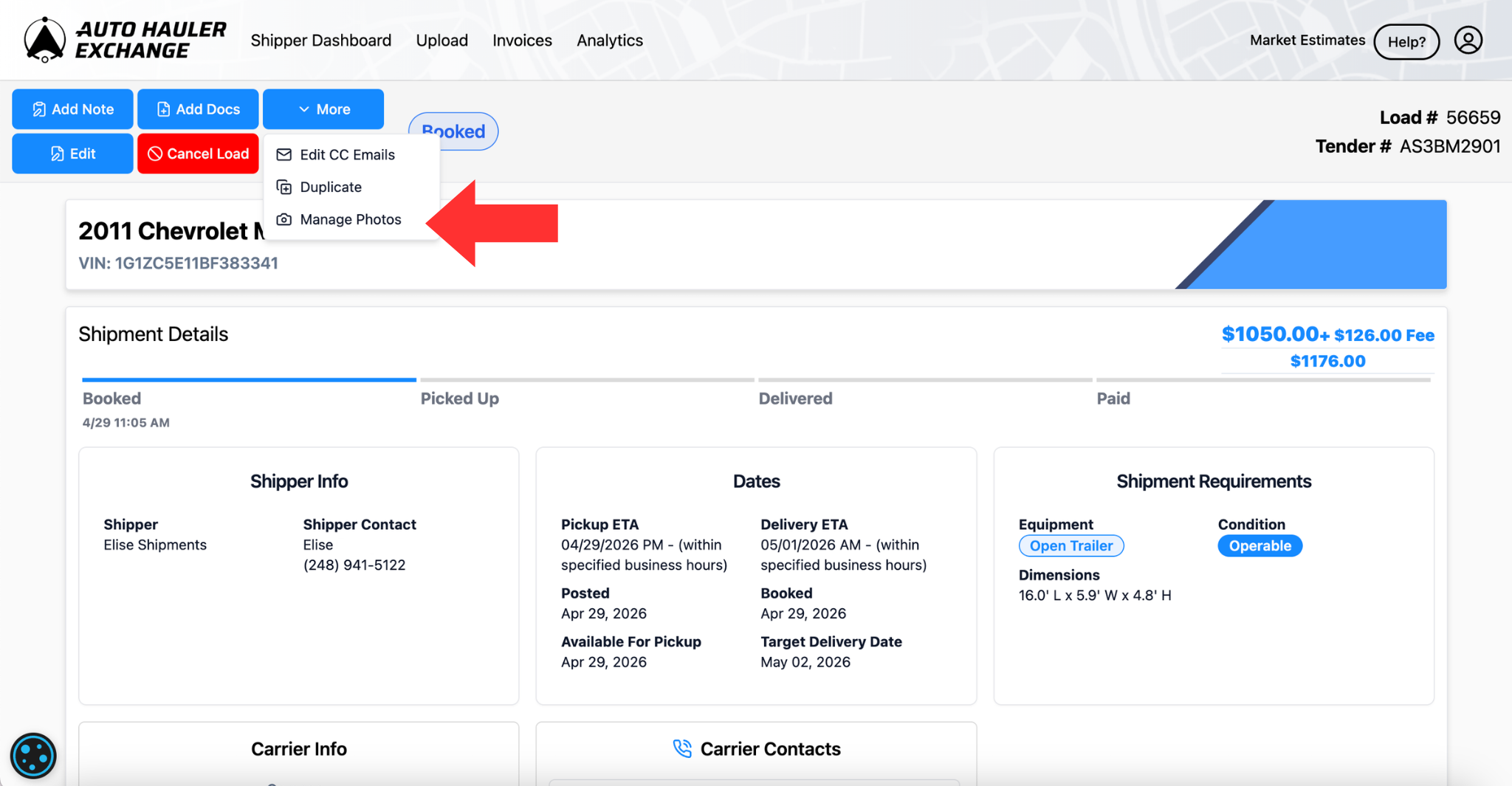
To get started, navigate to your load page, click “More,” then select “Manage Photos.”
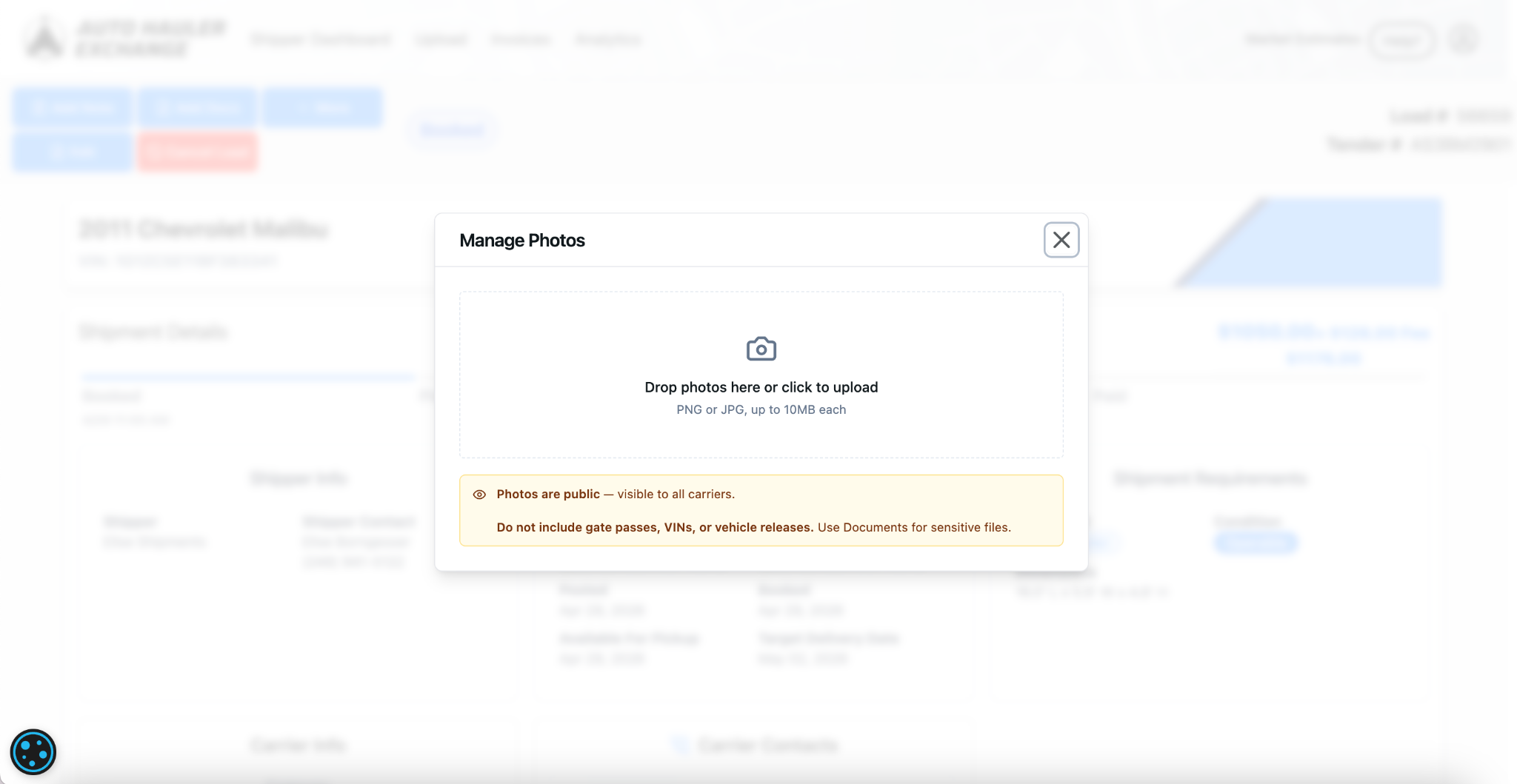
You will then be prompted to upload photos to the load.
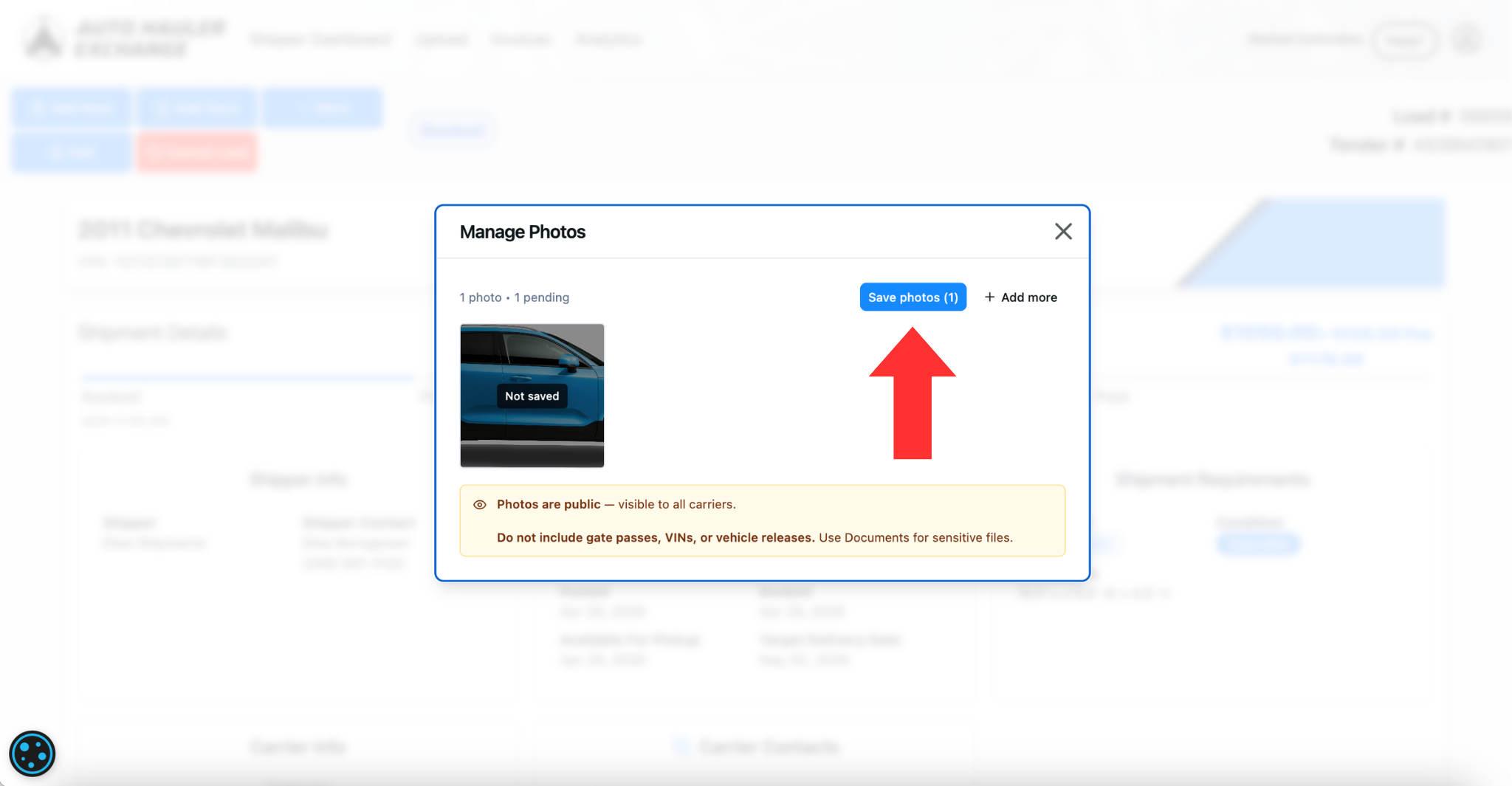
Be sure to click “Save Photos” before closing out the window.
Need Help?
If you’re unsure whether something should be uploaded as a photo or document, our team is here to help. Reach out anytime to support@autohaulerx.com.