
You can now checkout multiple loads at the same time in AHX, making it faster and easier to book several shipments in one step.
Instead of checking out each load individually, you can add multiple loads to your cart and complete the checkout process together.
Follow the steps below or watch this video to learn more.
How to Checkout Multiple Loads
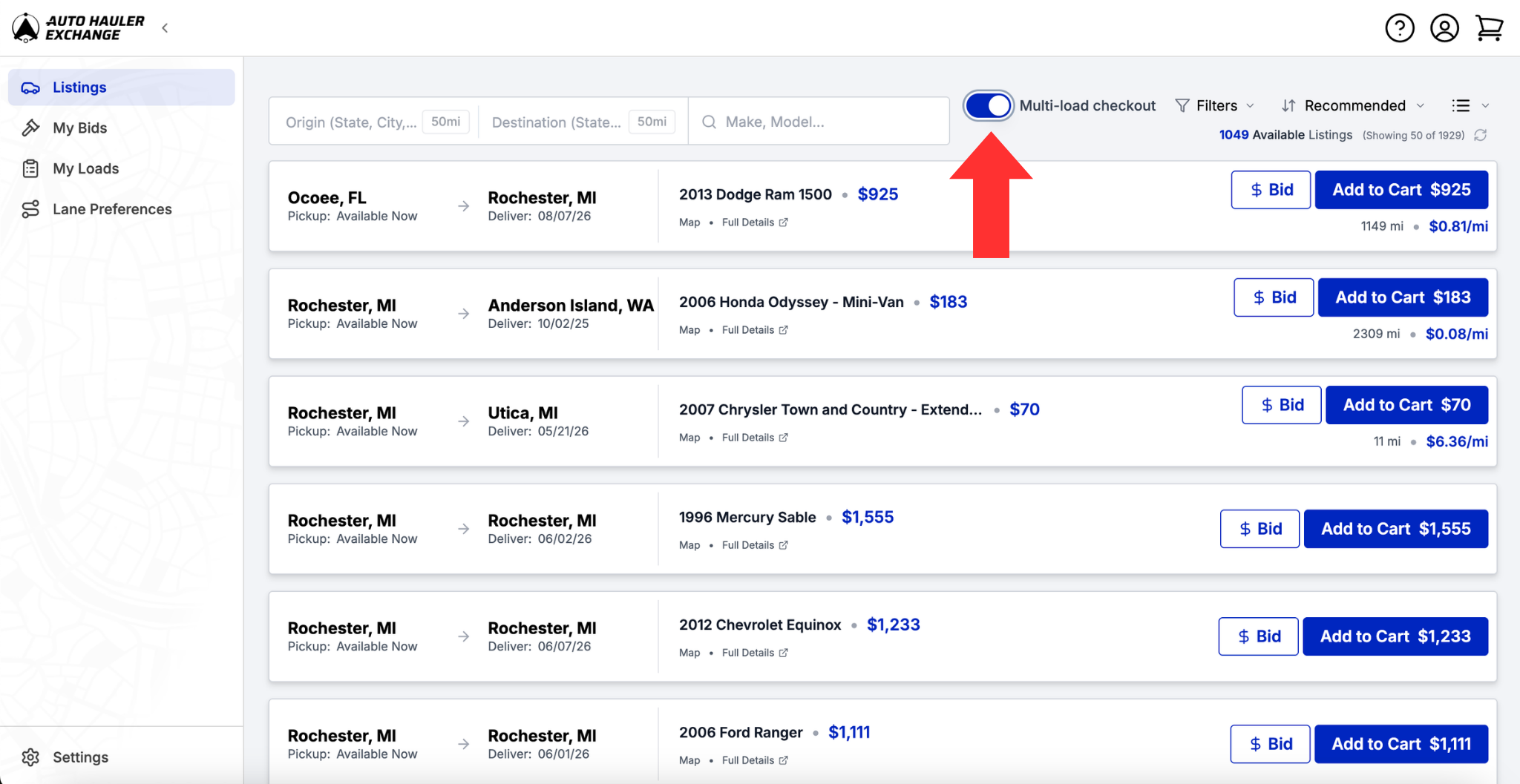
1. Turn on Multi-Load Checkout
When viewing available loads, turn on the Multi-Load Checkout toggle in the top right. This allows you to add more than one load to your cart.
2. Add loads to your cart
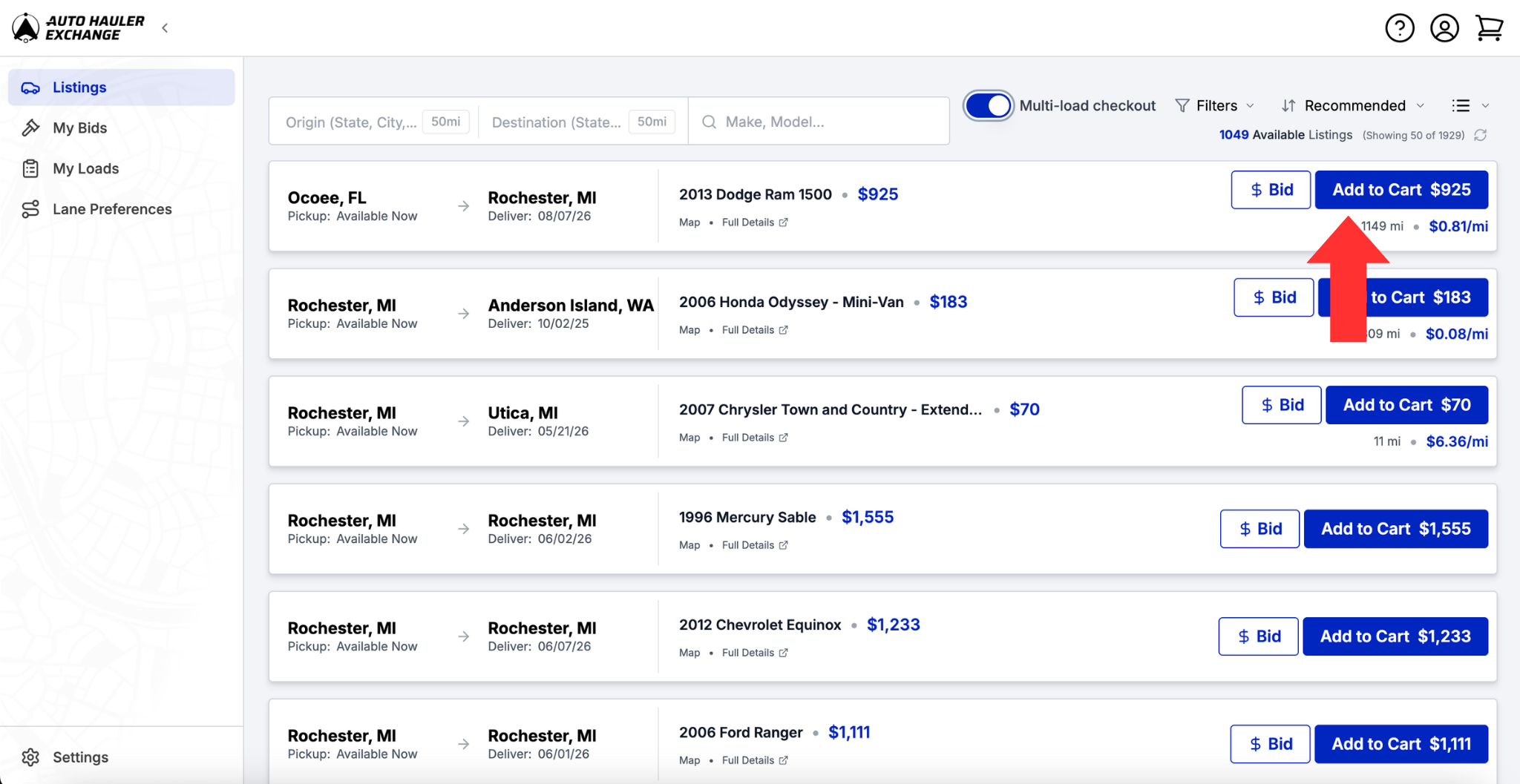
Once the toggle is enabled, select the loads you'd like to book to add them to your cart.
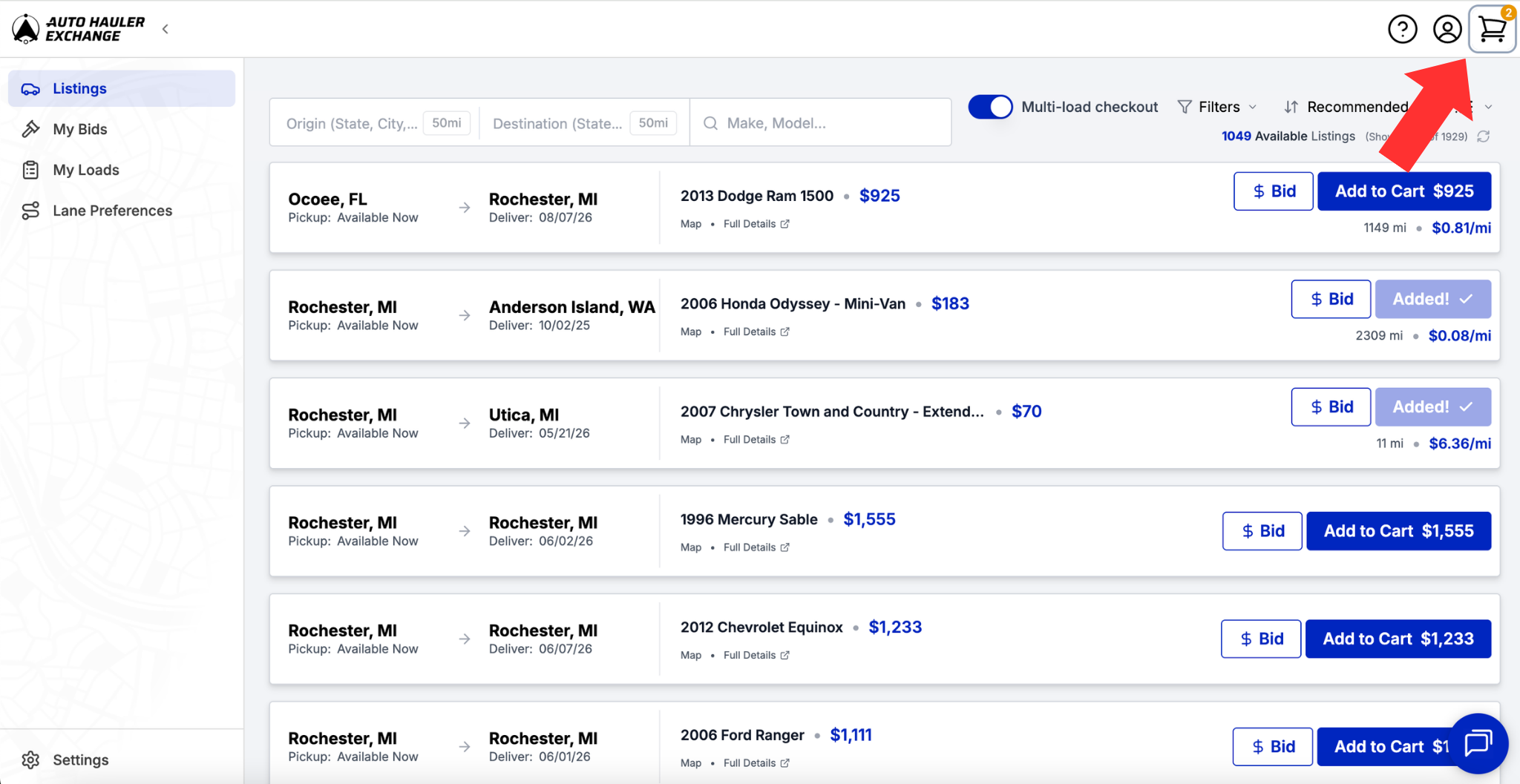
3. Checkout
When you're ready, click Checkout to complete the booking process for all of the selected loads at once.
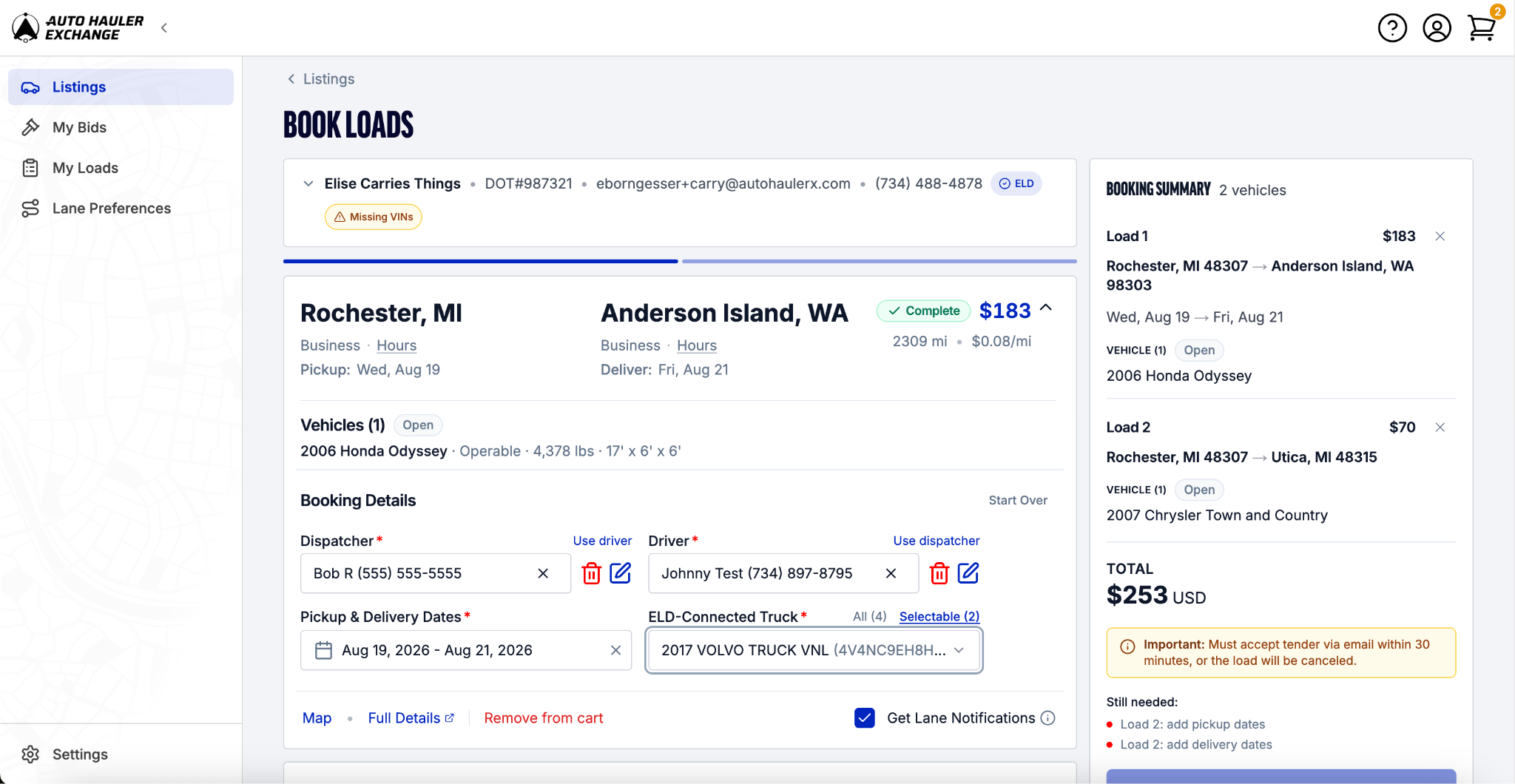
4. Complete the booking process
You’ll still select the driver, dispatcher, pickup and delivery dates, and truck as you normally would.
Once you enter the information for one load, it will automatically populate for the other selected loads. Just be sure to select the pickup and delivery dates for each load individually, as those dates will not carry over.
5. Book Loads
Once you have filled in all the necessary information, click “Book Loads” to complete the process. Don’t forget to check your email for the tender offer!
Why Use Multiple Load Checkout?
Multiple load checkout can help you:
- Book multiple shipments faster
- Spend less time checking out individual loads
- Streamline your booking workflow
- Get your selected loads booked in fewer steps
Questions?
Feel free to reach out to support@autohaulerx.com should you have any questions!