
Overview
Electronic Logging Device (ELD) tracking is a required component for carriers completing shipments through Auto Hauler Exchange (AHX). ELD integration allows the platform to automatically share real-time location updates during transport, helping reduce manual check calls and providing clear visibility into shipment progress.
By requiring ELD tracking, AHX helps create a more transparent and reliable transportation experience for both carriers and shippers while ensuring loads move efficiently from pickup to delivery.
What Is ELD Tracking?
An Electronic Logging Device (ELD) is a federally mandated system that records a commercial driver’s driving time, location, and hours of service. These devices are connected directly to the truck and provide accurate, real-time location data.
Within Auto Hauler Exchange, ELD data is used strictly for shipment visibility and verification purposes—not for driver monitoring or enforcement.
Why AHX Requires ELD Tracking
ELD tracking helps protect carriers by creating a clear, verified record of vehicle movement and ensuring smoother communication throughout the transport process.
Key benefits include:
- Fewer manual check calls from shippers and operations
- Faster issue resolution if delays occur
- Clear documentation of shipment movement
- Greater trust and transparency with shippers on the platform
Connecting Your ELD Provider to AHX
Carriers are required to connect a supported ELD provider to their AHX account before booking loads. If your account is not yet connected, you will be prompted to do so when you log in.
If you have already connected an ELD provider, no further action is required and you will not see this prompt.
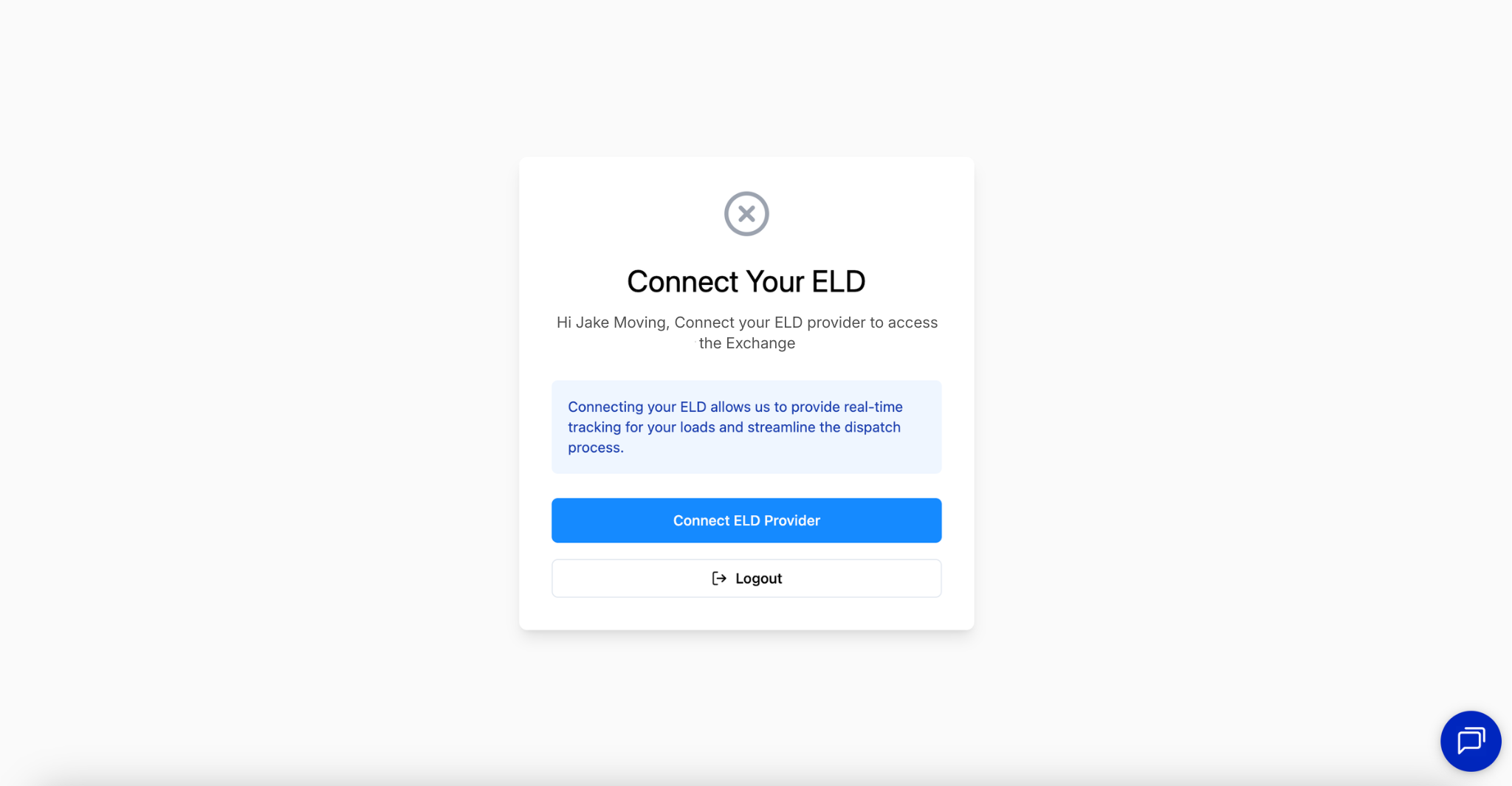
1. Connect ELD Provider
Click “Connect ELD Provider” on the pop-up.
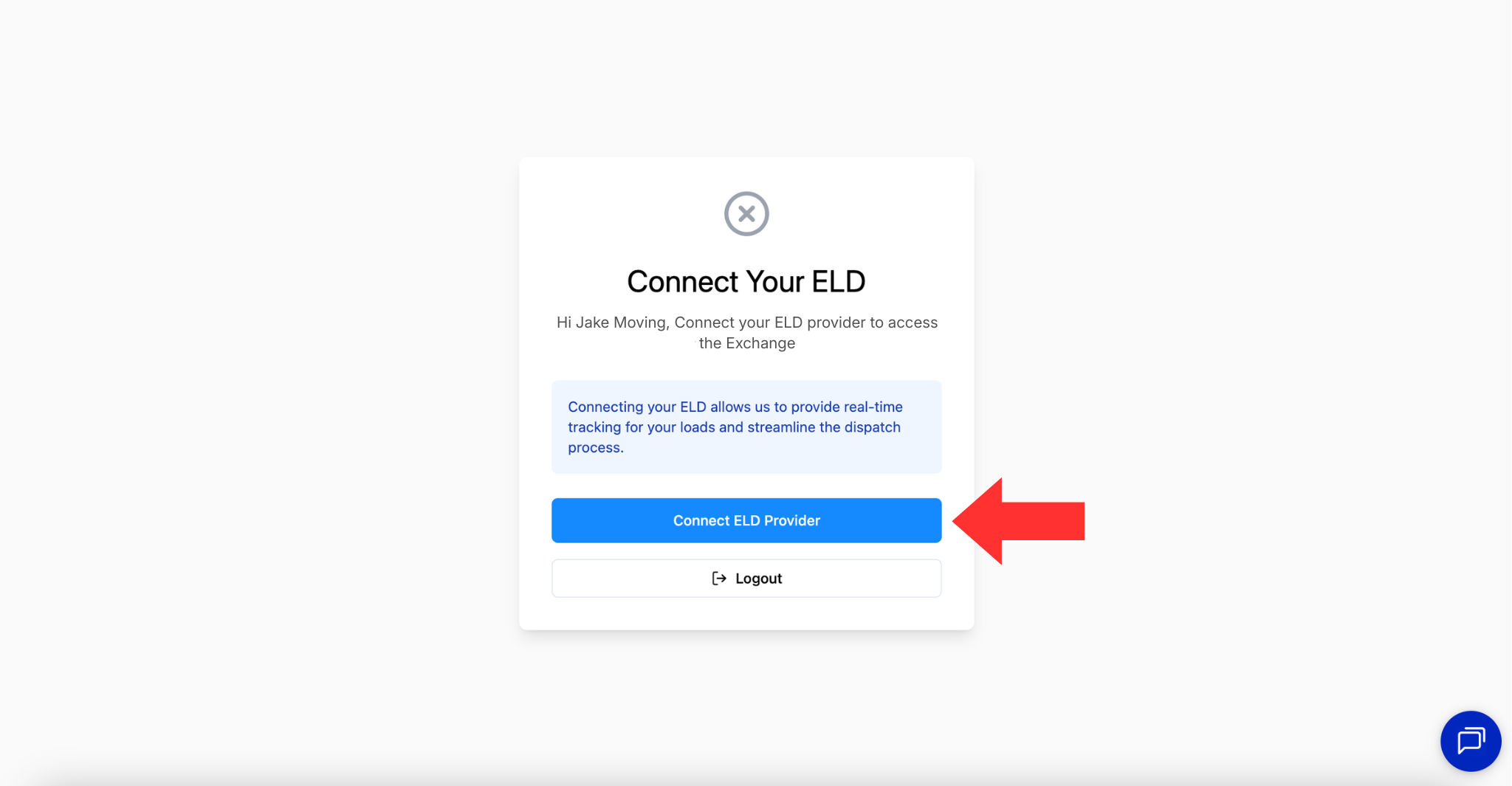
2. Agree and Continue
Select the black “Continue” button to agree to Auto Hauler Exchange’s terms and conditions.
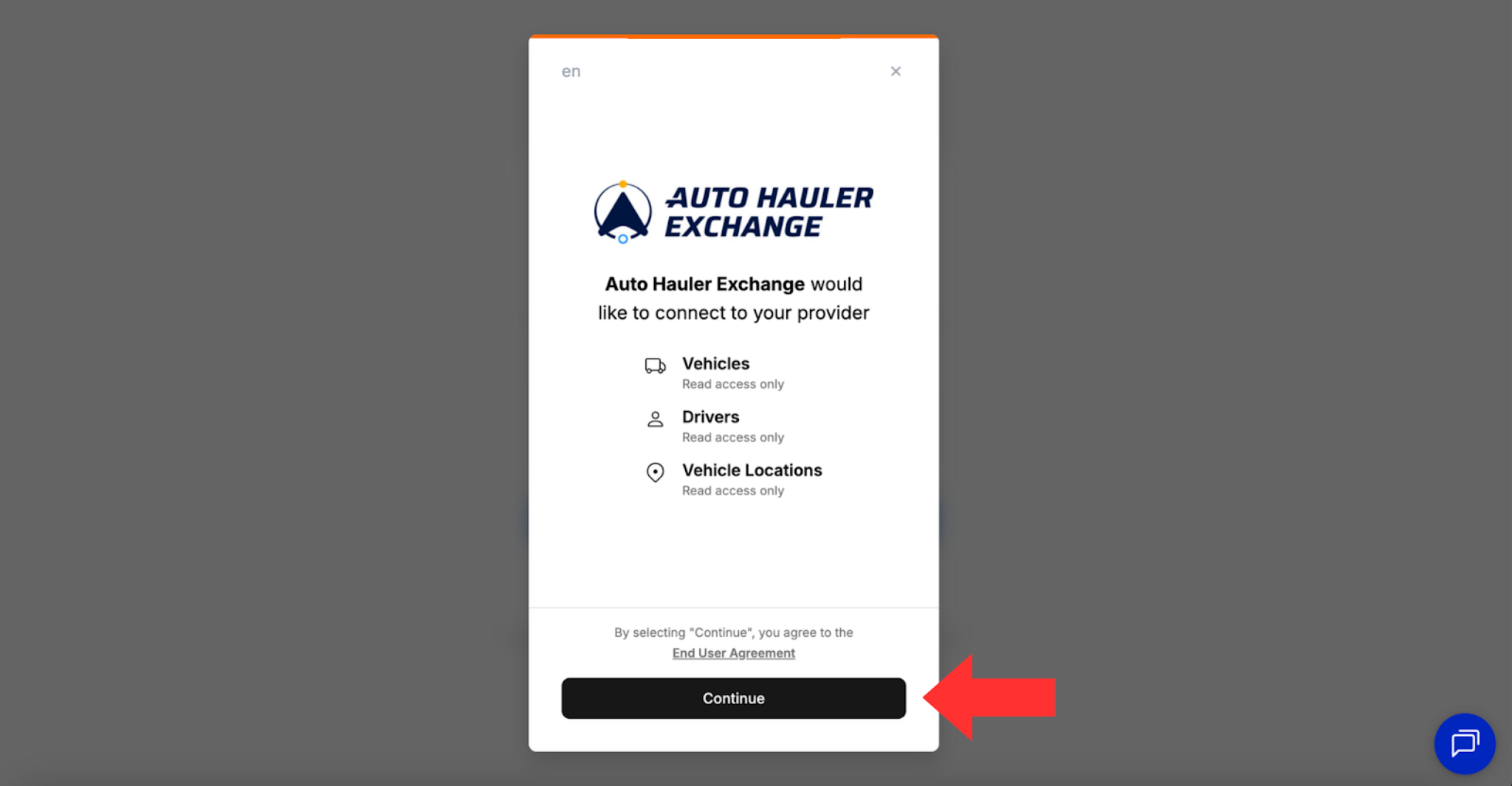
3. Find ELD Provider
Select your provider from the list of options provided.
If your ELD connection provider isn't listed, reach out to carrier@autohaulerx.com.
4. Login with Provider
Enter your login credentials for the provider and click “Continue” to successfully connect your account and existing ELD connections to AHX.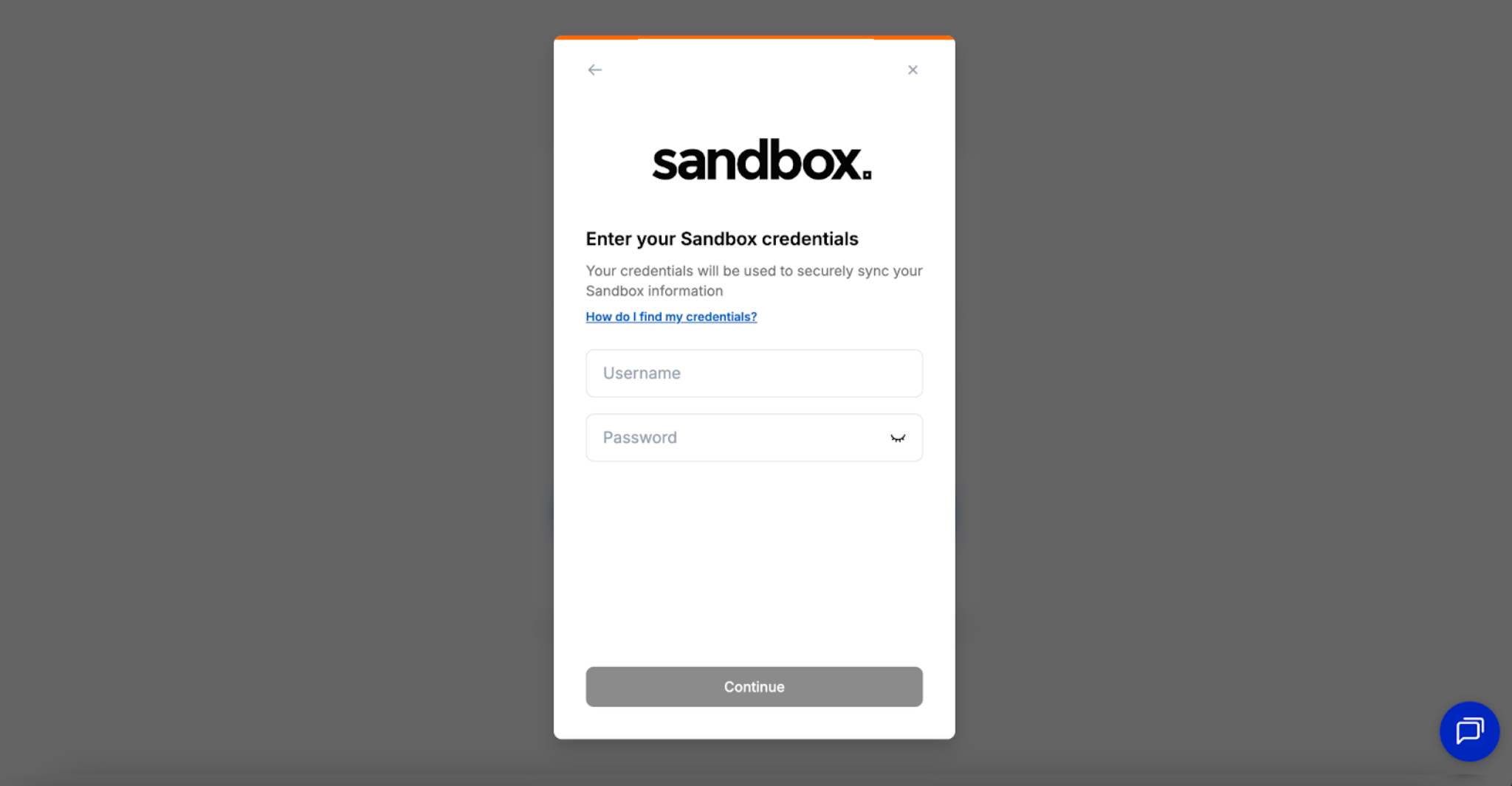
Visibility
Once you have connected your provider you are able to view your connections at any time within your account.
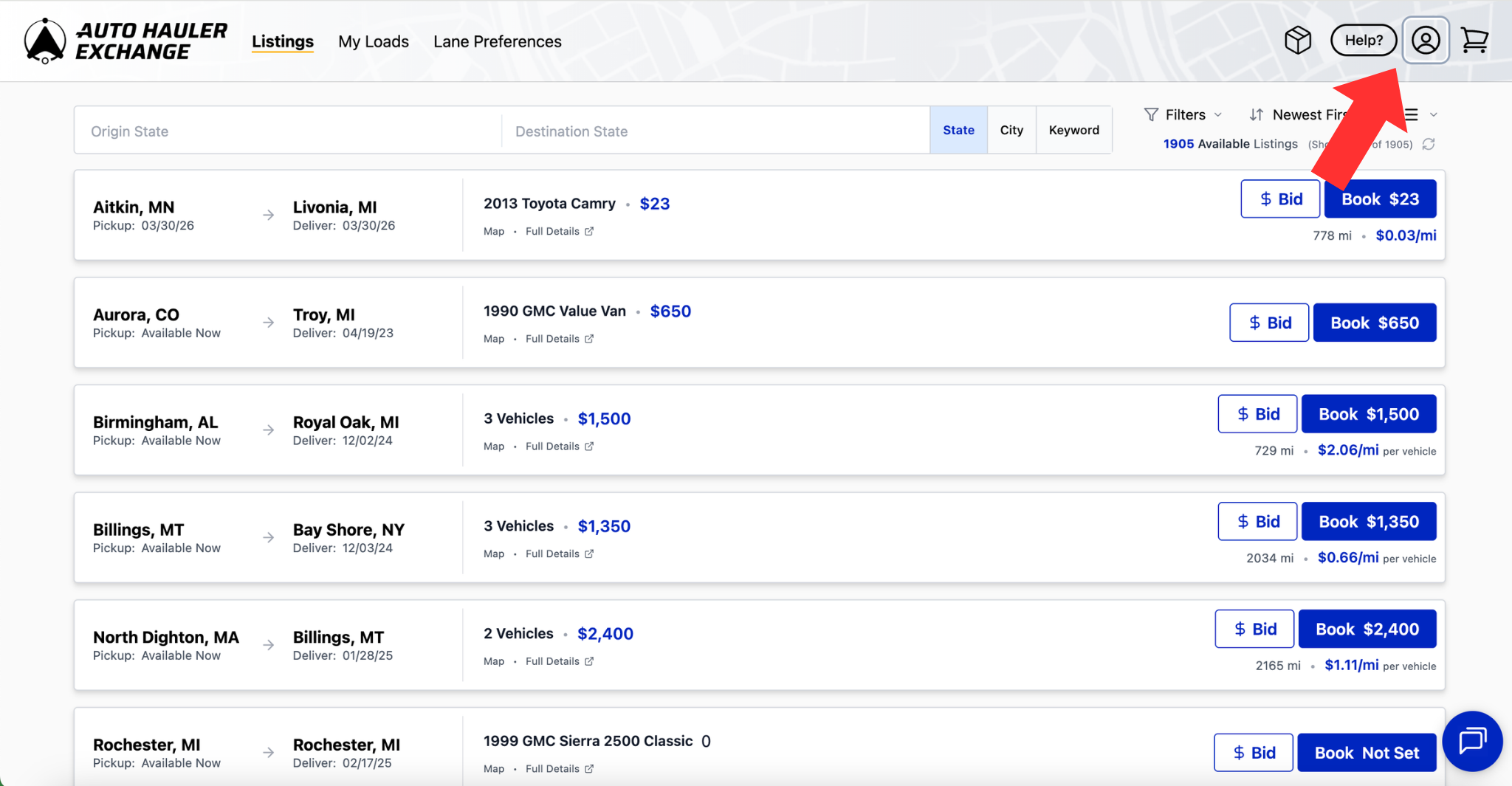
Click the “Account Icon” in the top right corner and then select “Tracking.”
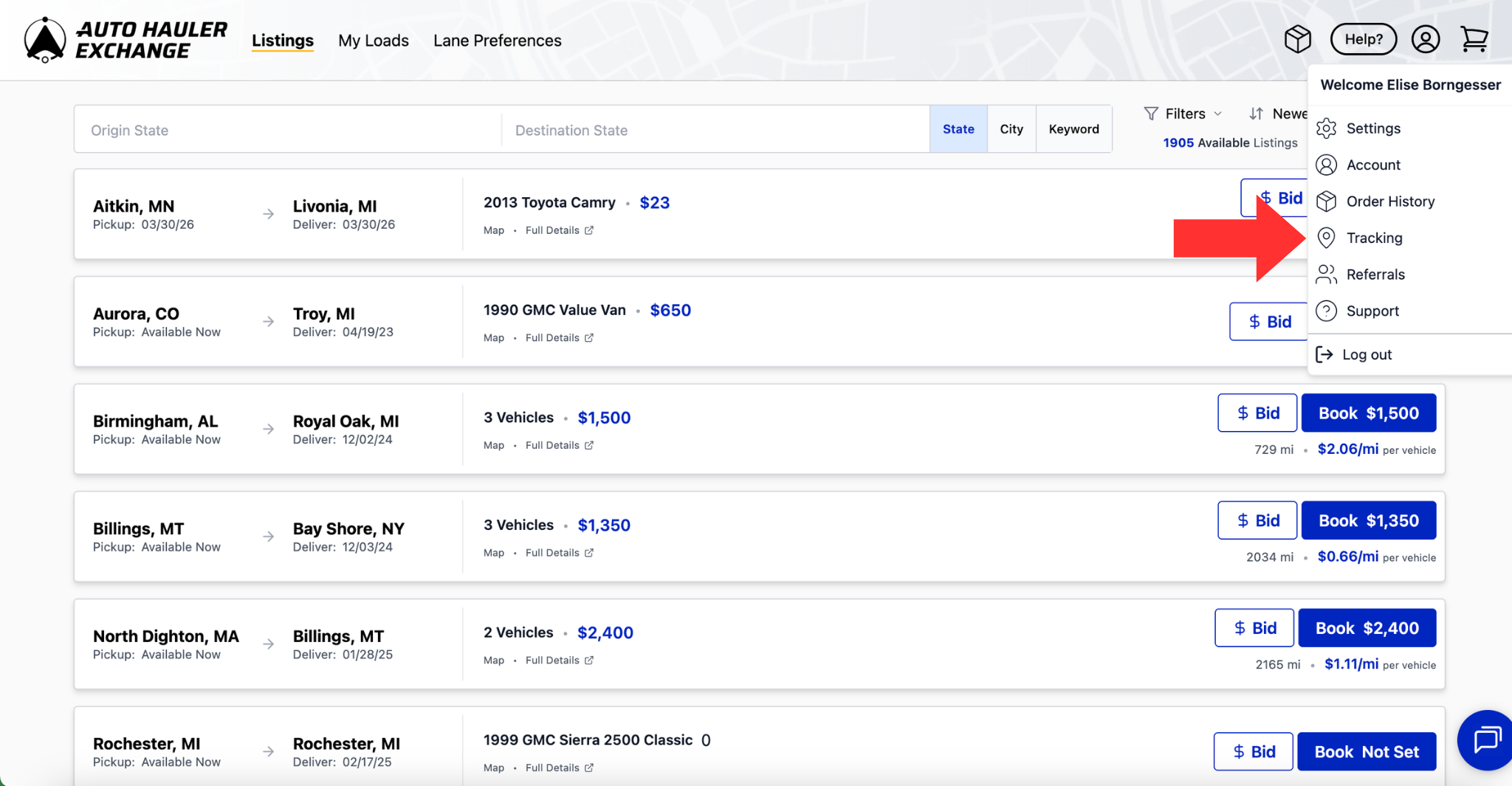
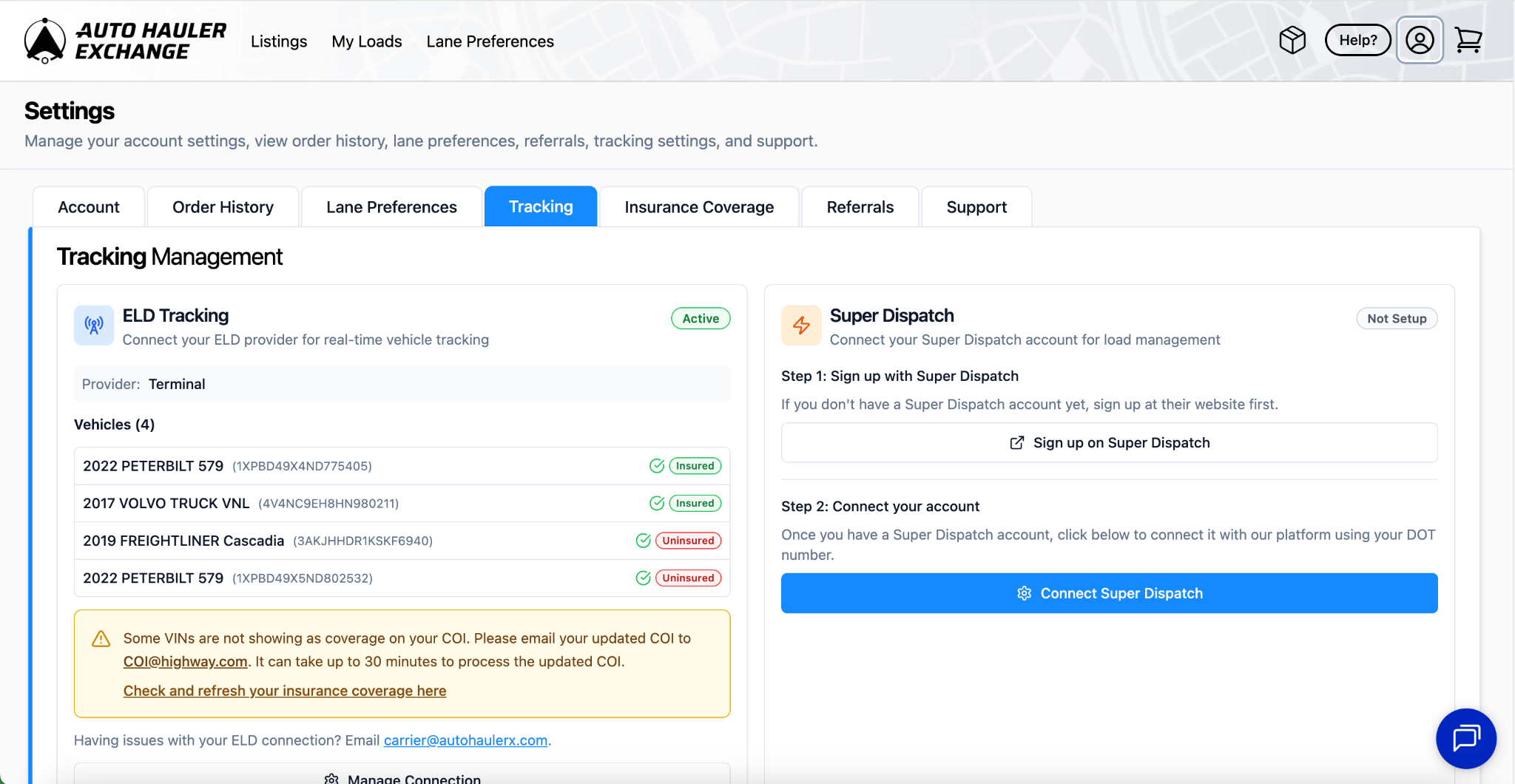
This will bring up your existing ELD Connections.
You will be able to see which vehicles are insured and which are not.
Updating Your Insurance
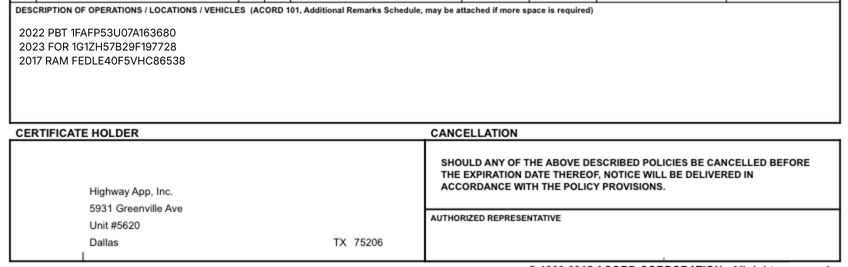
To update your insurance, please do so through Highway. You will first need to contact your insurance provider to ensure any vehicles not currently listed on your Certificate of Insurance (COI) are added. Once your policy has been updated, you can submit the new COI through Highway.
All vehicles covered under your insurance must have the full 17-digit VIN listed, as shown below.
Selecting ELD When Booking a Load
When booking a load, you will be prompted to select which vehicle you are using for that specific load.
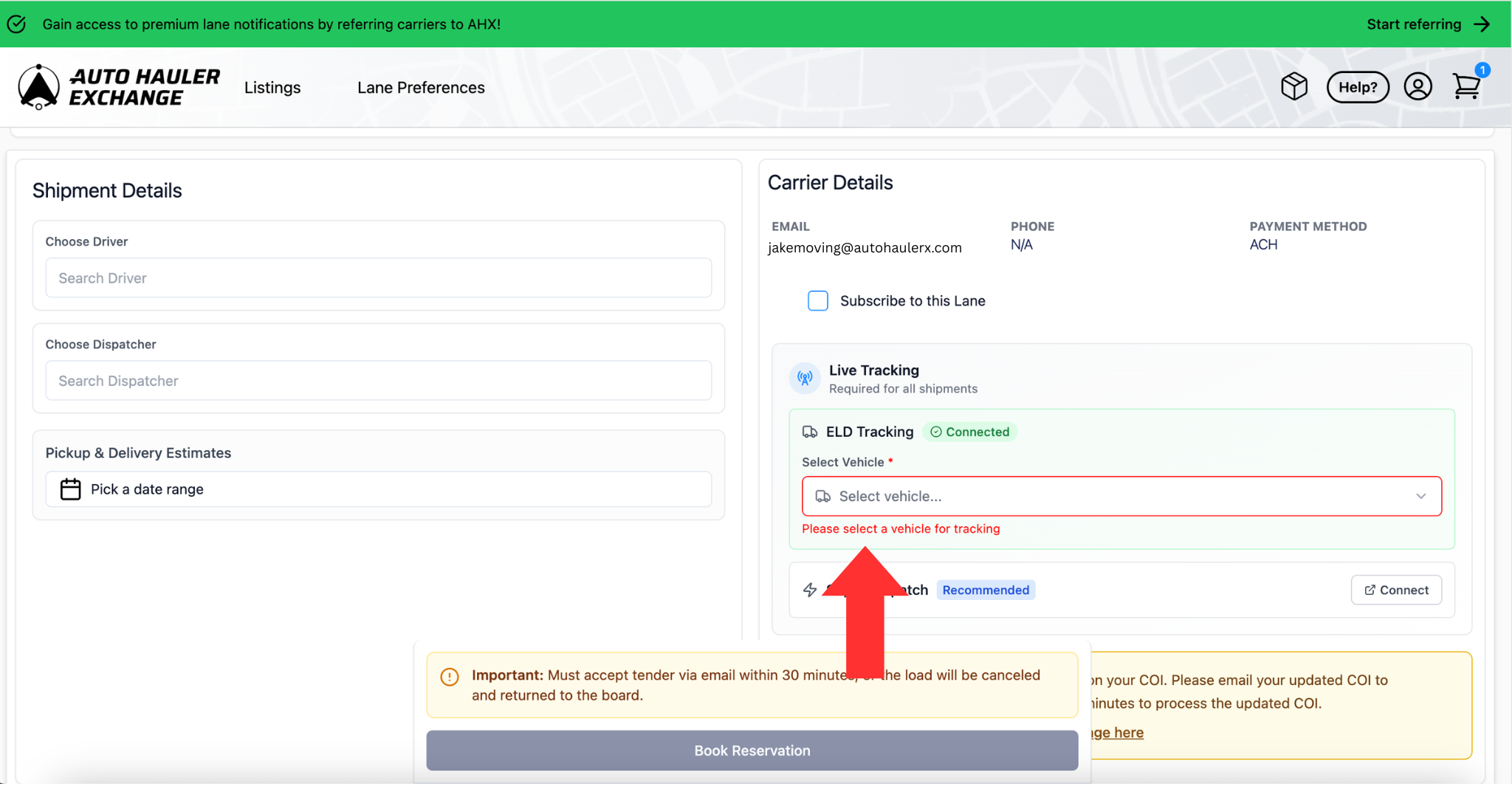
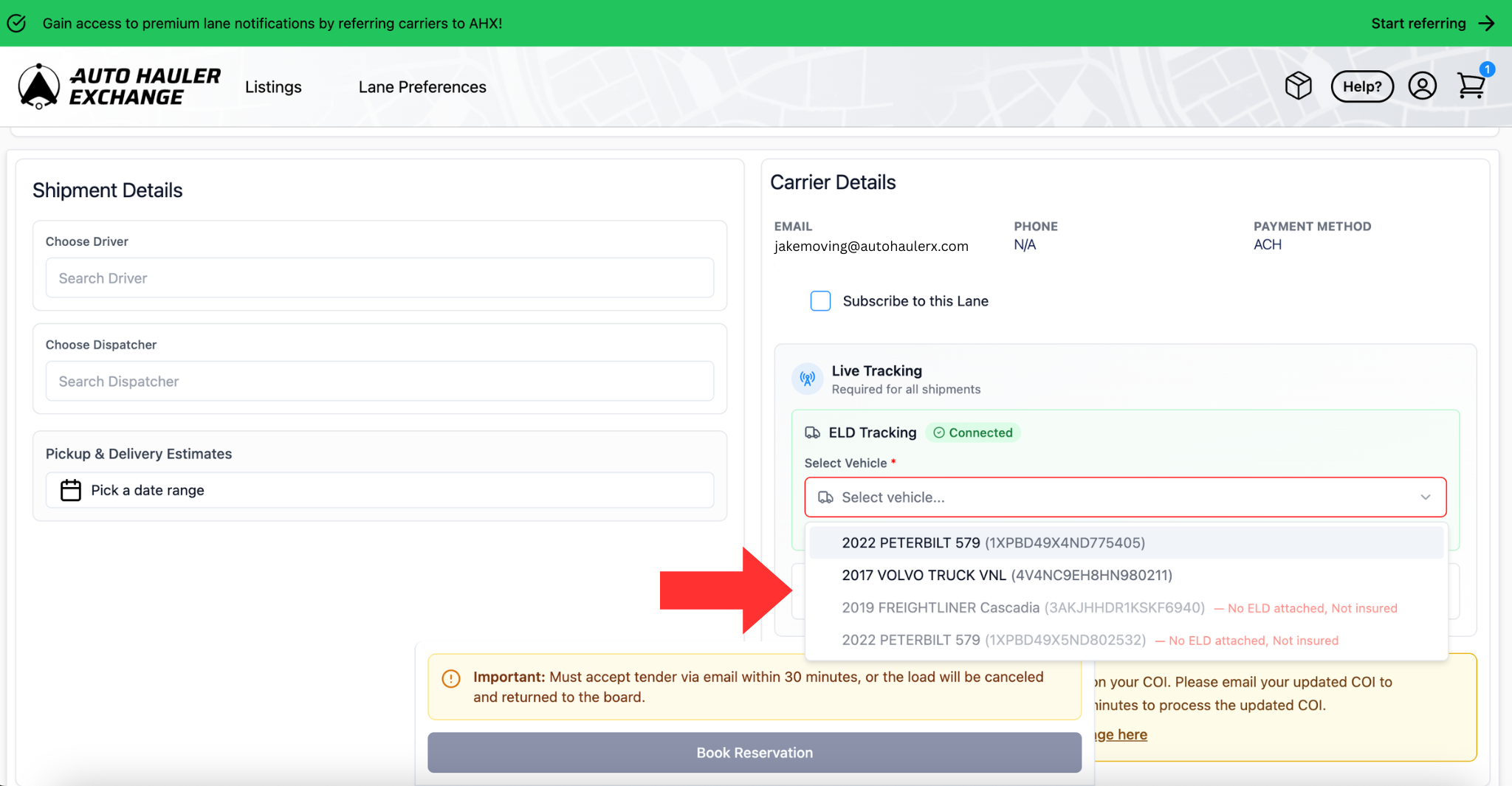
From the dropdown menu, you will be able to see all vehicles connected to your AHX account.
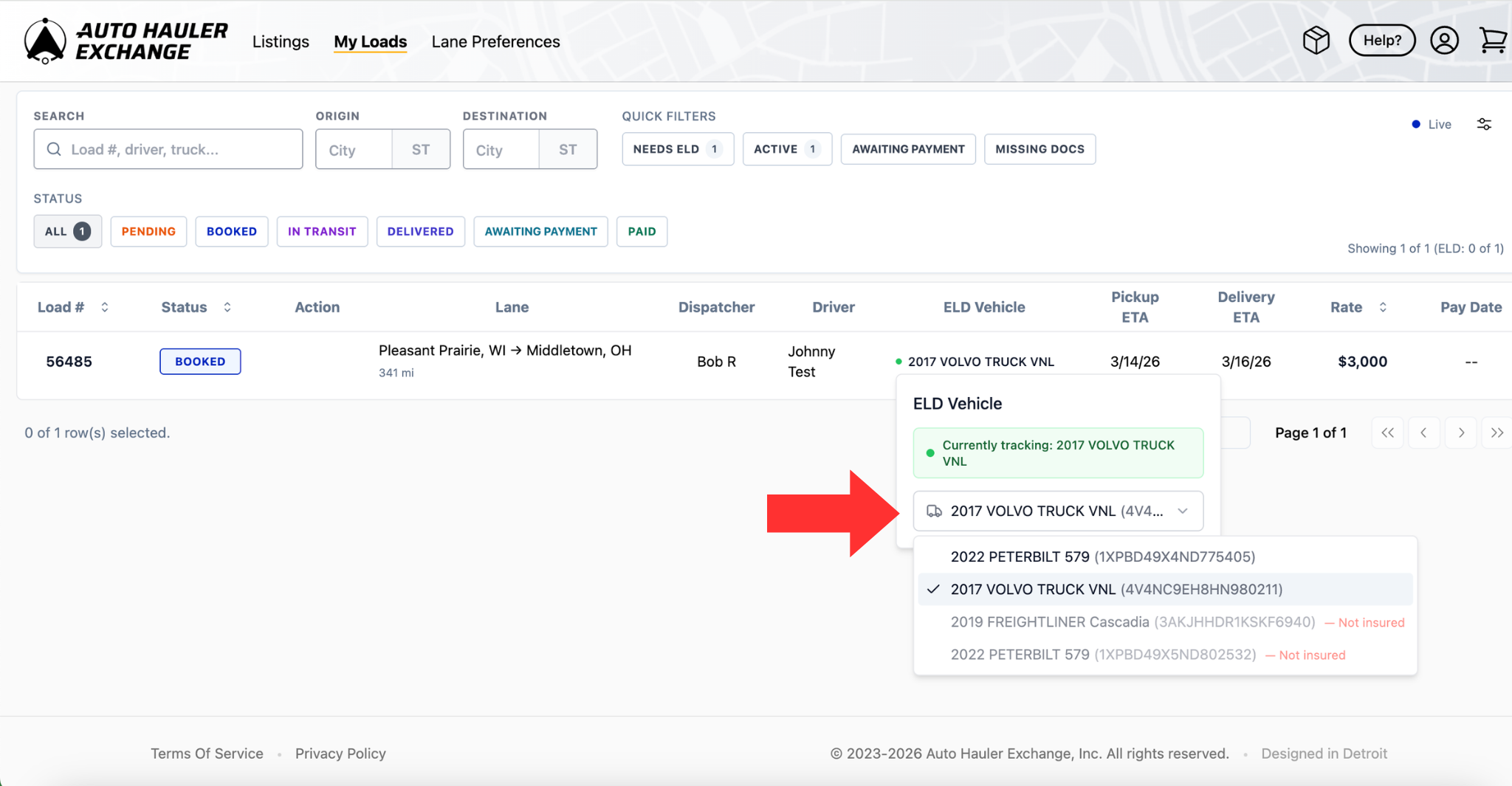
If you have any vehicles that are uninsured or not connected through ELD they will be greyed out and you won’t be able to select them for the load.
Changing Vehicle After Booking
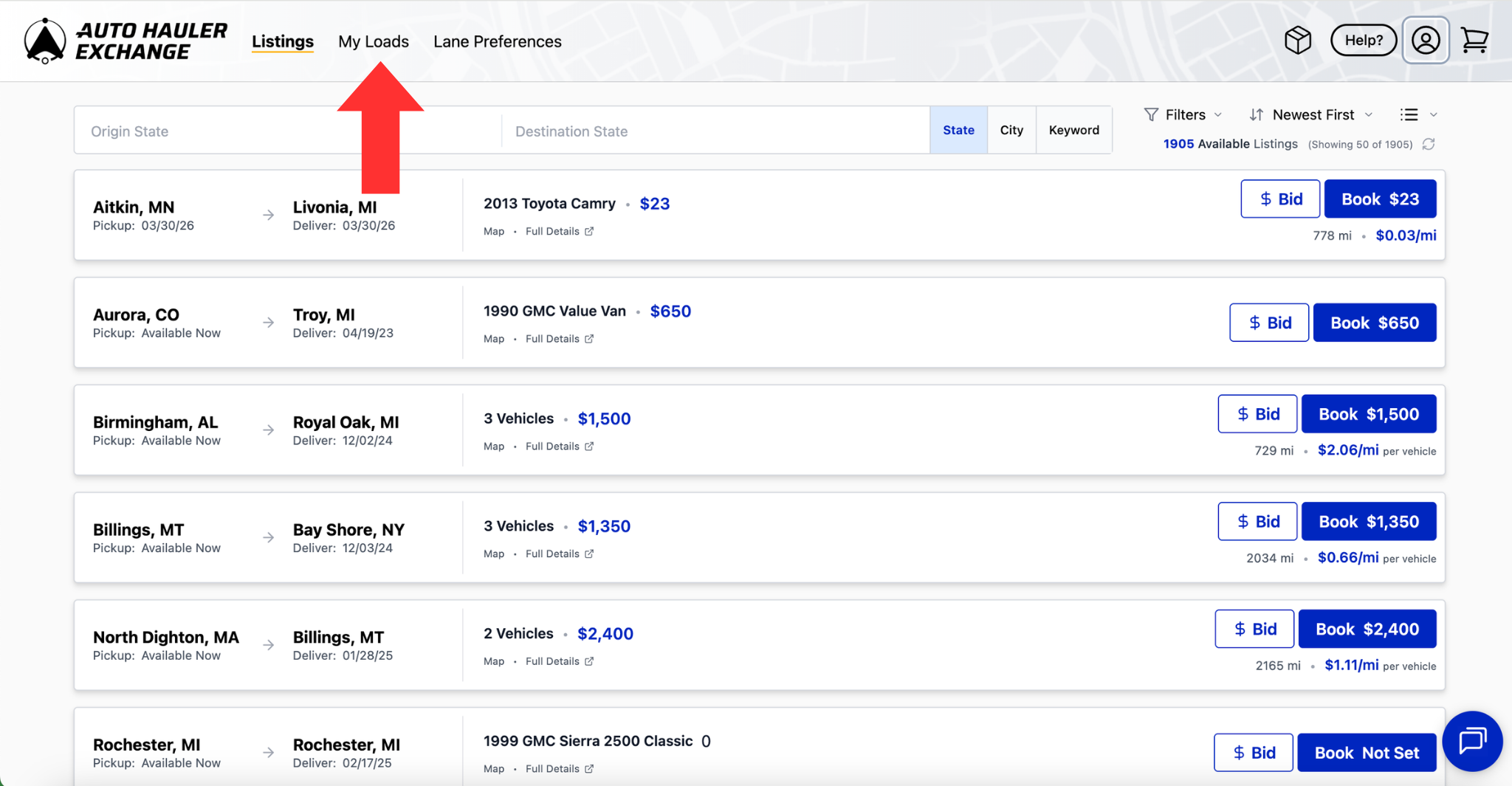
To change your vehicle after booking a load, you can do so by visiting the “My Loads” page.
Under the ELD tracking column you will be able to see which vehicle you currently have selected.
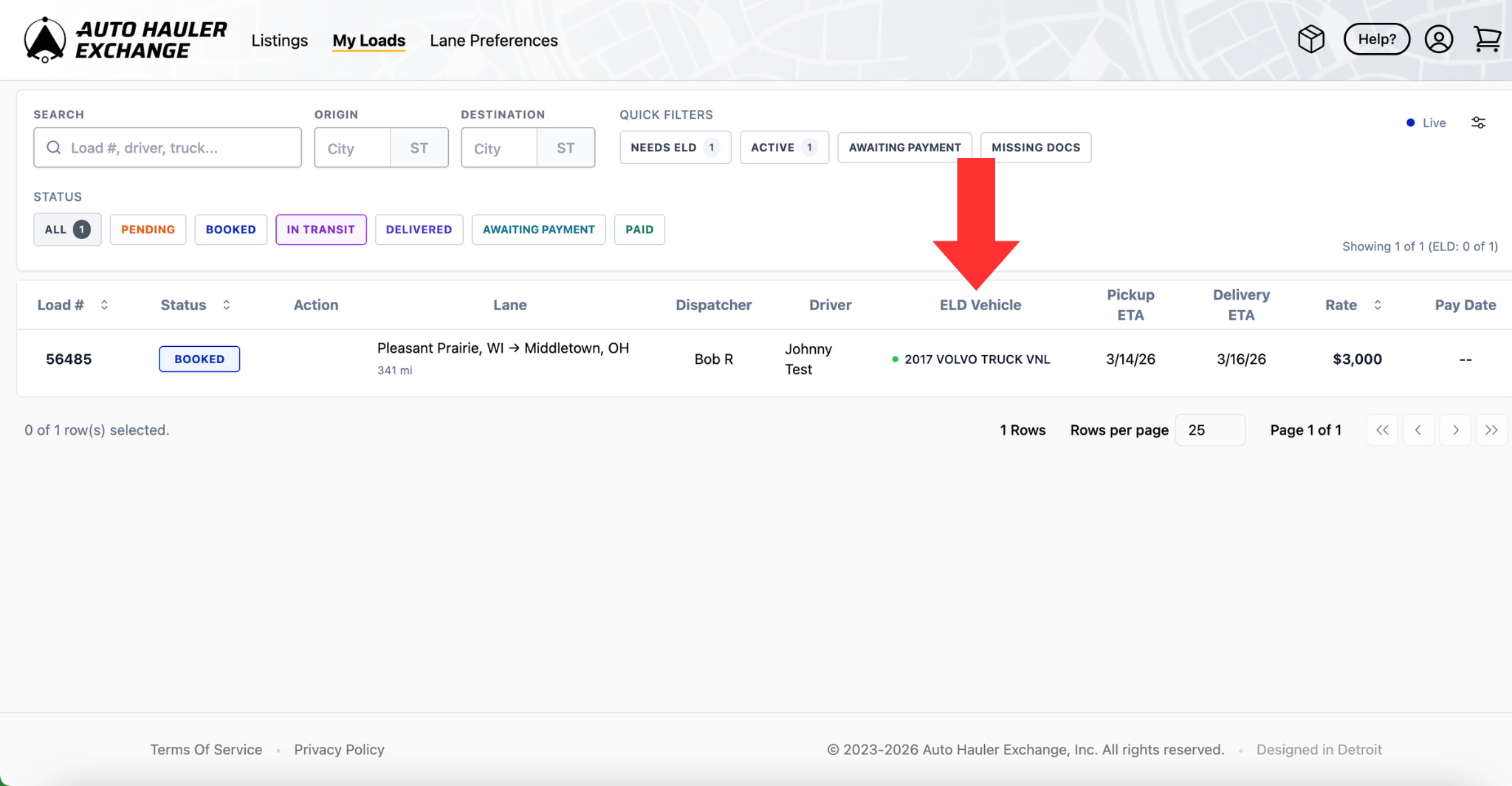
To change the vehicle, click on the current vehicle and pick from the dropdown.
If you have any questions regarding ELD please feel free to reach out to our support team at support@autohaulerx.com