
On Auto Hauler Exchange, you can add multiple email addresses to receive notifications about shipments, updates, and platform activity. This is especially helpful if you want teammates, accounting staff, or store managers to receive the same alerts you do.
This guide walks you through how to add additional email recipients on your account.
Step 1: Log Into Your AHX Account
Visit autohaulerexchange.com and login with your username and password.
Step 2: Go to Your Profile Settings
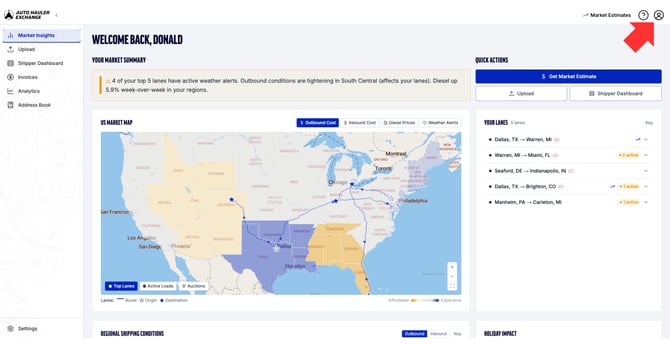
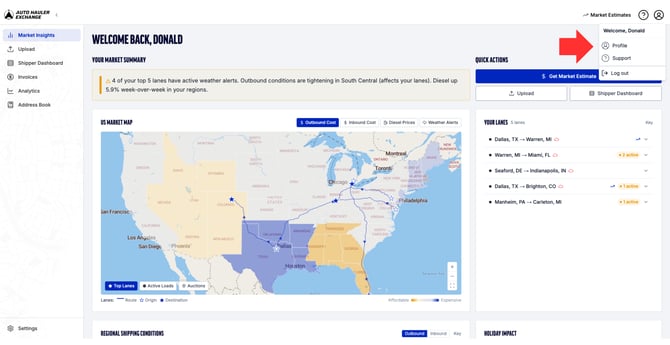
In the top-right corner, click your Profile Icon and select Profile.
Step 3: Locate the “CC Email List” Section
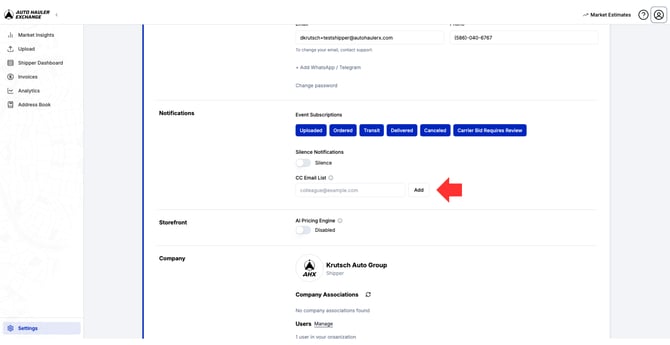
Inside your account settings, look for the section labeled “CC Email List.”
This is where you can add email addresses that should receive notification copies.
Step 4: Add an Email Using the “+” Button
- Click the + button under the CC Email List
- Enter the email address you want to add
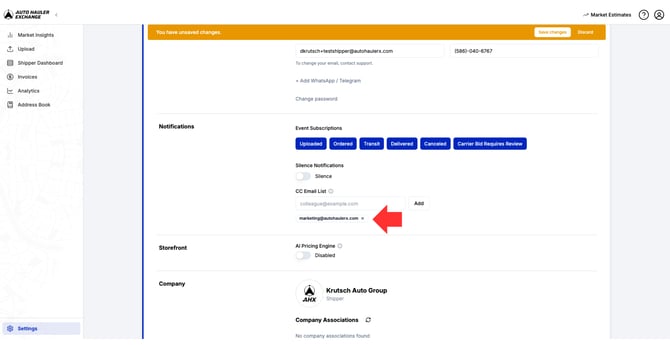
- Repeat to add as many emails as needed
All emails added to the CC list will receive notifications for this account.
Step 5: Update Profile
Once you have added your desired emails to the list, scroll to the bottom and click “Save Changes” to save changes.
Removing Emails
To delete an email from the CC list, simply click the “X” icon.
After deleting the email be sure to click “Save Changes” to save the changes.
Changing an Email
To change an email, simply click the box of the email you want to change.
After changing the email be sure to click “Save Changes” to save the changes.