
Keeping your drivers and dispatchers up to date on Auto Hauler Exchange makes booking loads faster and ensures the right people receive load assignments and tracking information.
You can add drivers and dispatchers to your account at any time from your Account Settings, or while you're booking a load.
Watch this tutorial or follow the steps below.
Option 1: Add Drivers and Dispatchers from Account Settings
If you're setting up your account or adding team members in advance:
1. Log in to your Auto Hauler Exchange account.
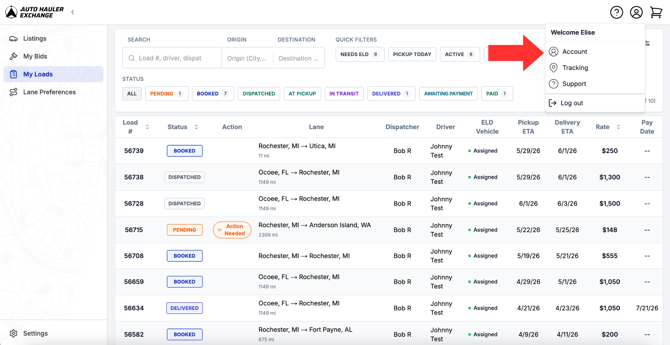
2. Click Account.
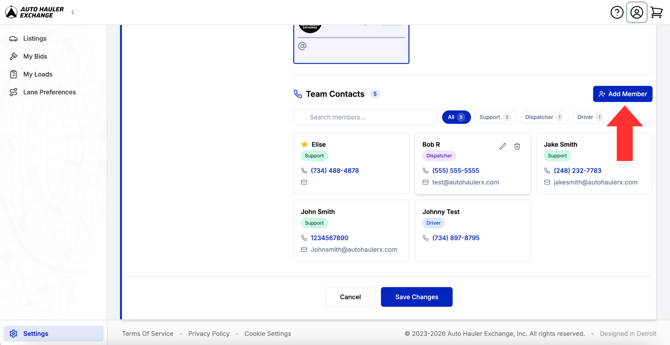
3. Scroll down to the Team Contacts section.
4. Select Add Member.
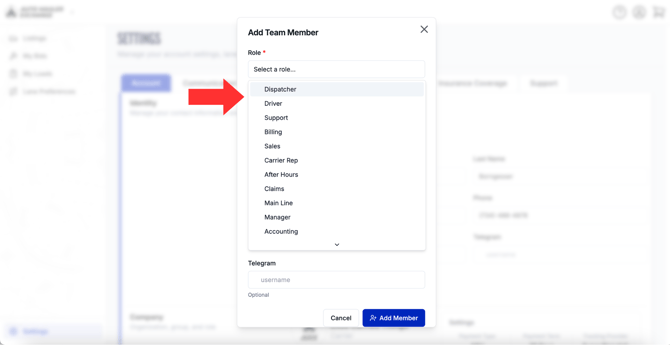
5. Select the role from the dropdown menu.
-
- Name
- Phone number
- Email address
7. Click Add Member.
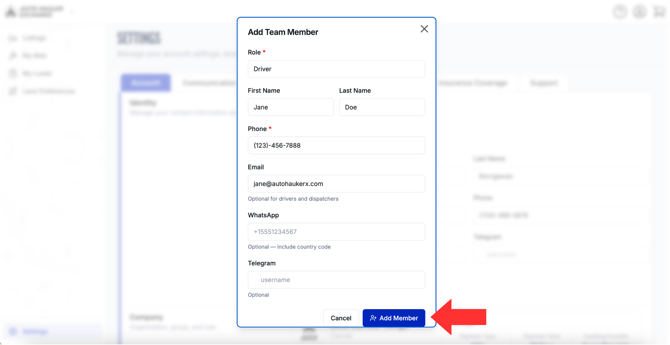
Your new driver or dispatcher will now be available when booking future loads.
If you need to delete a team member, select the trash can icon.
If you need to edit a team member, select the pencil icon.
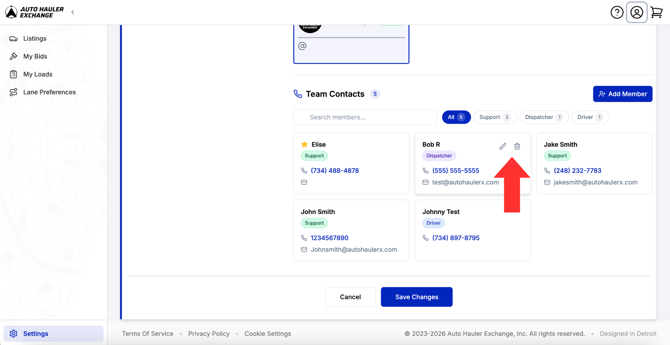
Option 2: Add Drivers and Dispatchers While Booking a Load
If you haven't added a driver or dispatcher yet, you can do so during the booking process.
1. Begin booking a load.
2. When prompted to select a driver or dispatcher, choose Add a Driver or Add a Dispatcher.
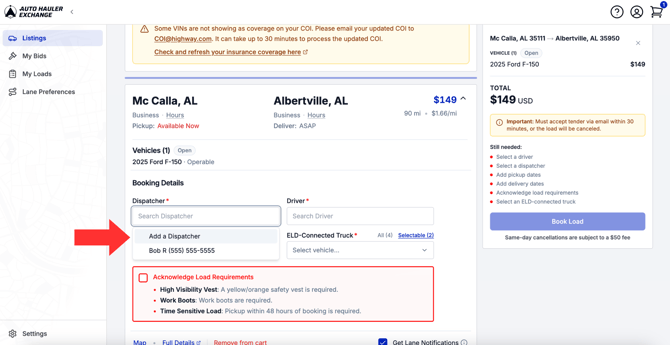
3. On the pop up, enter their information.
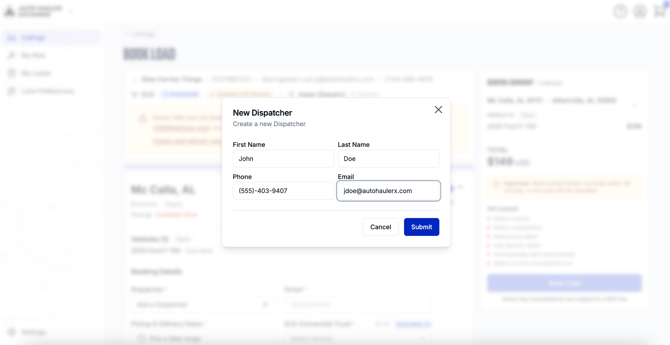
4. Click Submit to save the new contact.
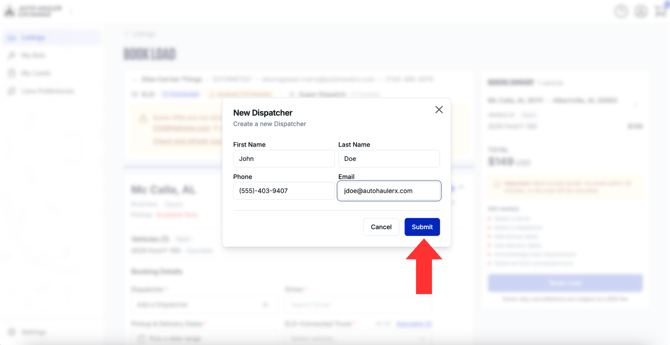
5. Continue completing your booking.
The driver or dispatcher will automatically be saved to your account for future use.
Option 3: Update the Driver or Dispatcher After Booking a Load
If your assigned driver or dispatcher changes after you've booked a load, you can easily update the contact information from the My Loads page.
To update the assigned driver or dispatcher:
1. Navigate to My Loads.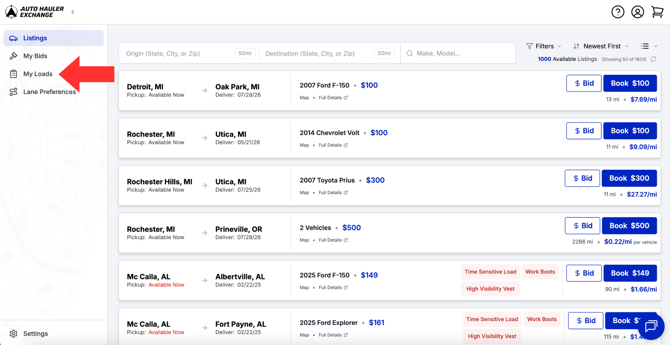
2. Locate the load you want to update.
3. Click on the current Driver or Dispatcher name.
4. Select the correct contact from the dropdown menu.
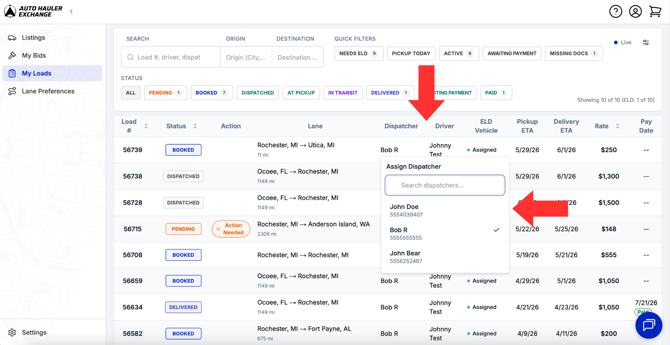
5. Your changes will save automatically.
Note: Keeping your driver and dispatcher assignments up to date helps ensure accurate communication throughout the shipment and allows shippers to contact the correct person if needed.
Need Help?
If you have questions about managing drivers or dispatchers, contact our Support Team. We're happy to help.